Native editor workspace and troubleshooting
The editor is an optional, OFF-by-default native developer tool
(apps/editor, target ludus_editor). It opens a project descriptor, edits its
native build/launch settings, saves, reopens, configures/builds, runs the
selected executable in a separate process, stops it, and reports failures. It
also provides scene placement and project-defined component authoring in World,
including the world-demo game adapter. Trusted authoring
rendering and gameplay use separate windows; the status area describes the runtime.
See the specification package for the authoritative contract:
.kiro/specs/editor-workspace/{requirements,design,tasks}.md and
docs/architecture/editor-workspace-research.md. The
editor architecture and
interaction design define S1
and subsequent authoring stages.
The editor embeds the approved Ludus Block artwork
for its application/window icon, Welcome view and recent-project fallback icons.
macOS bundles include the derived ICNS resource for Finder and Dock. The shared
PNG sources live in docs/wiki/assets/ and also supply the wiki and browser
editor package; launching the native editor does not need those files on disk.
macOS builds also bundle an external crash handler. Help > Crash Reporting controls consent and shows local report status; see crash reporting setup and symbols before distributing a build to labmates.
Work areas and document ownership
The editor follows Visual Studio's layout: documents open as tabs in the central document well, and tool windows dock around it (see Workspace layout).
| Document | Purpose |
|---|---|
| Start Page | New/Open and recent projects while no project is open |
| World | 2D/3D placement, game-owned entities/components, typed fields, references, shared history/save/recovery and trusted preview |
| Render Graph | The open render-graph package: its source tree beside the node Canvas, the Source text editor and the validated Plan (render-graph authoring) |
| Code | Any project text file as a code tab: shared buffer, atomic save, external-change conflicts, crash recovery and the code status bar (code editor) |
| Project Settings | Setup/engine overview, lifecycle actions, rendering resolution/scale, name/profile and expandable build/launch details |
| Scripts | Project-owned script and sequence drafts |
| Audio | Content selection, definitions, save and preview |
| Configuration | Independent offline configuration preview and preference editing |
| Tool window | Purpose |
|---|---|
| Project Explorer | The project's worlds, render graphs, shaders, scripts, audio and content; opening an item opens its document |
| Properties | Fields of the active document's selection (the selected World entity or render-graph node) |
| Error List | Render-graph, shader and build diagnostics; double-click navigates to the source |
| Output | Selectable build/tool/runtime diagnostics |
| Content | Content catalog, search and imports |
| Render Preview | The World viewport rendered through the open render graph (Preview Runtime, status and image) |
| Live Inspector | Copied runtime state and supported live property operations |
| Timing | Runtime-reported frame pacing and interval statistics for the running session |
| Profiling | Record editor CPU scopes, viewport GPU durations, or both into a Perfetto JSON trace |
Right-click a Project Explorer category, file, or empty area to open its context menu. The Add button also offers New World, New Render Graph, New Shader, New Script, New Sound, New Music, and the audio/content import workflow. Worlds begin as unsaved drafts; Save creates the file. Render graphs use the existing template/package creation dialog. Shader and Luau source files start as unregistered source files: add their entry points/programs to the owning manifest/package before building or cooking. Script files and shaders without a graph owner open in the configured external code editor on native platforms; that external launch is unavailable in the browser. The Scripts category continues to open the project script workspace.
Add Existing File copies a selected authored file into an existing project folder without replacing files. A file already inside the project is opened without copying it. Single-file imports retain their references; add companion files separately. Audio/content imports use the Content workspace's current WAV/FLAC importer and publish through its catalog. New sound/music definitions require an imported source selected in Audio. The audio/content categories keep their workspace operations; they do not expose raw file deletion or duplication of catalog-managed resources.
For one authored file, choose Duplicate (Ctrl+D / Command+D) or Remove
(Delete, or Backspace on macOS). A graph in a subdirectory duplicates its entire
containing package into a new sibling folder, preserving companion paths.
Root-level graphs, worlds, shaders and scripts duplicate only the saved file;
references outside the copied package stay shared. Copies never overwrite a
destination and reject child symlinks; package copies are bounded to 64 MiB,
4096 entries and 12 directory levels, and publish only after the full copy succeeds.
Remove asks for confirmation, then moves the file under the project's hidden
.ludus-trash folder, preserving its relative path inside a unique recovery
folder. Restore it manually to its original path and Refresh. References in
other files are not rewritten. Switch away from a loaded World or graph package
before removing its files; closing a tab retains its document. Select another
script program before removing its loaded source. File actions operate on one item at a
time; a multiple selection disables Duplicate and Remove.
The Configuration workspace retains its explicitly loaded preview/draft across project changes. Quitting prompts for unsaved preferences. Project settings, audio definitions, offline preferences and live values have separate save owners. Applying to a session does not save a file; copying a live value to a tuning draft requires a separate save. See configuration and native live editing.
Selection and keyboard shortcuts
Selectable lists, tables and trees support the host platform's usual gestures: click to select, Ctrl-click on Windows/Linux or Command-click on macOS to toggle individual items, and Shift-click for a range. Ctrl+A / Command+A selects all selectable items in the focused view; Escape clears that view's selection. Arrow keys navigate and Shift+arrow extends selection. Text fields keep their own native selection, clipboard and undo shortcuts.
Use Search entities above the World entity list to filter names, labels and stable IDs without changing the document. Matching ignores case and surrounding spaces; the count shows how many entities match. Clear the search to show all entities. Filtering deselects hidden entities, so Duplicate and Delete act only on visible selections. Picking a hidden entity in the viewport clears the search and reveals its selection. Search pauses while inspector edits need Apply or Reset.
In the World entity list, Ctrl+D / Command+D duplicates the selected group; Delete (also Backspace on macOS) asks to delete the group. Each group operation is one World undo step and publishes only after the whole candidate validates. Duplicated group references and scene parents point to their corresponding copies; references outside the group remain unchanged. A surviving reference blocks deletion of its target. Capacity or identity-generation failure leaves the World unchanged. F2 focuses the name field for a single selected entity; Return does the same on macOS. Multiple entities show a selection count in Properties; select one entity to edit fields or attach components. The viewport continues to use the primary selected entity for framing. World sessions retain the selected entity IDs.
The render-graph canvas supports Ctrl+A / Command+A and Escape as well as Ctrl-click / Command-click toggling and Shift-click additive selection (a canvas has no list ordering for a range). Other document actions and inspectors retain their current-item behavior; selecting multiple rows does not imply batch field editing, reimport or opening every document. Existing Save, Undo/Redo and clipboard shortcuts retain their document and focus routing.
Use Window → Next Document and Previous Document, or Alt+Tab and Alt+Shift+Tab (Control+Tab and Control+Shift+Tab on macOS), to cycle through open documents in tab order. Switching crosses split tab groups and wraps at either end, focuses the selected document, and leaves closed documents closed. The shortcuts also work while focus is in a text editor or a tool window. On Windows/Linux, the desktop may reserve Alt+Tab for application switching; the editor receives it only when the desktop shortcut is released or remapped.
Project lifecycle: tasks and audiences
The Project tab shows the project folder, committed engine requirement and components (v2 SDK projects), saved build profile, and the last read-only setup check. A successful SDK check identifies the actual selected engine version, revision, target, flavor, installation and selection source, including local overrides. An unchecked or failed check is not a claim that the project is ready. These results describe the saved project and computer inputs at check time; recheck after changing installations outside the editor.
Check setup, Repair setup, Save settings, Build and run, and Stop use the existing controller commands and their capability gates. Dirty settings must be saved before checks/repair/build. Save settings saves the project descriptor and pending edits in the active renderer graph, including the output resolution and render scale shown in this tab. Audio, World documents, scripts and configuration keep their own save owners. Opening a project still does not configure, download, repair or build it. Repair's browser checkbox and engine selection retain their explicit behavior.
Name and build profile are visible. Profile labels explain Development for everyday work, Debug for investigating code, and Release for distribution, with Linux/macOS named explicitly. Version-1 descriptors disable profiles outside their original Linux Debug/Development contract. Labels preserve the exact underlying preset IDs; profile selection edits a draft and never switches engines or builds implicitly. The saved preset ID remains visible in the overview. Build and launch details reveals provider, source directory, executable target, working directory and the exact argument list. Expanding/collapsing only changes the presentation and preserves settings and history.
The following are designed use cases, not claims of interviews or usability studies. Experience and discipline are independent: a professional artist may need simple setup while a beginning programmer wants detailed build controls. No role choice gates access to capabilities.
| Consumer and real task | Workflow and observable acceptance |
|---|---|
| First-time developer creates a game | Welcome → New Project → Name/Location → Create. Existing automatic engine selection stages and verifies the project. Errors retain the current project; no successful publication is claimed before build/tests. Project shows where files live and how to run. |
| Unity/Unreal/Godot user opens a team clone | Open the descriptor, read setup status, then explicitly Repair if tools/presets are missing. Learn the engine requirement and profile from the overview; no need to understand CMake fields to repair. |
| Experienced developer switches from iteration to a release build | Select the named profile, Save settings, Check/Repair its setup, then Build or Package through existing menus. Profile intent stays distinct from SDK acquisition and release packaging. |
| Designer, artist, sound designer or localization contributor joins a project | Open and diagnose setup without changing team metadata. Use the relevant work area; the Project tab explains that content documents save separately. Setup remains explicit rather than blocking access to readable content. Localization authoring itself remains a separate editor gap. |
| QA reproduces a launch issue | Expand build/launch details to inspect target, working directory and exact arguments; select the intended profile, save, run and stop. Copy Job Details in Output supplies exact process evidence. Failed builds never launch an older artifact. |
| Engine/tool engineer uses a local SDK | Repair with a selected installed engine; verify revision, prefix and local override in the successful check. Existing repair preserves custom presets and unrelated IDE settings; committed engine requirements are not rewritten. |
| Rendering researcher runs an experimental executable | Reveal target/preset/arguments, configure to discover executables, select the target and launch separately. Check reports the actual selected SDK; shader prerequisites remain explicit. This does not create a renderer authoring panel. |
Delivery boundary and next lifecycle work
This first UX slice improves orientation and access to existing verified tooling. It does not deliver an installed Editor distribution, SDK archive/store browser, release-version upgrade/migration UI, arbitrary custom-preset discovery, or browser/native workflow parity. Existing CLI owners remain the source of those operations. Future UI must reuse their preview/validation/locking semantics and show expected/actual engine identities before committing a change; upgrade must preserve project-owned source and custom settings, support failure recovery, and never conflate a machine-local override with a committed team engine update.
SDK setup identity travels through a bounded, job-tagged setup_details control
event (at most 16 KiB of UTF-8), separately from the reserved terminal summary
and output credit. The controller publishes it only after a successful setup
result; failure and cancellation show their own outcome. This private protocol
requires the matching editor/tooling version.
A setup check also sends one engine_pin event (at most 8 KiB) before running:
the selected engine install compared with the Editor's checkout revision
(current, stale, invalid or unknown). It is accepted only for
project_check, so a failed check can still offer Use this editor's engine.
Starting a check or repair clears the previous report. See
engine drift.
Acceptance covers keyboard/mouse disclosure, profile identity and explicit save, read-only checks with selected engine evidence, disabled commands, pending argument text, history and project switching. Offscreen Qt tests validate behavior; native screenshots validate layout separately. No automated result establishes that representative users completed these journeys comfortably. Moderated task sessions with programming and content disciplines remain a usability gate.
Prerequisites (optional editor setup)
The editor needs Qt 6 (6.4-compatible) with the Core/Gui/Widgets modules and a
native platform plugin (Wayland on Linux, Cocoa on macOS), in addition to the normal reference toolchain
(./init.sh prepares pinned Clang 23 / LLD / managed CMake/Ninja/Conan and the
managed Python venv). Qt is not added to Conan or the SDK. Default initialization
skips editor setup; select Build Ludus editor in the setup window or use
./init.sh --cli --with-editor to install missing Ubuntu/Debian Qt packages or
Homebrew qtbase on macOS and
build the selected native Debug, Development or ASan/UBSan editor with 3D preview.
Editor setup also acquires the checksum-verified pinned shader tools: Slang on
macOS, plus SPIR-V Tools on Linux. Native editor builds with 3D preview automatically
build the shader worker. Native World viewports use the project's render graph
and start a private compiler worker for automatic shader rebuilds; no separate
compiler flag or socket configuration is needed. This requires macOS 15
or newer on macOS. In Advanced setup, clear Include 3D
preview and live shaders for a lightweight document-only editor, or use
--no-editor-preview with --with-editor in the CLI. That path skips shader-tool
setup and explicitly disables rendering, including in an existing build cache.
The preview choice is saved for the selected editor preset and applies to later
script, direct CMake and IDE builds. --no-system-install skips system package
installation; it does not skip the managed shader tools when preview is enabled.
--no-editor explicitly
disables the editor for the prepared presets. Initialization also excludes test
targets by default; use --with-tests to include editor tests or --run-tests to
build and execute the enabled tests after setup.
Editor tests also require Qt Test, supplied by the same Qt base development
package on Ubuntu/Debian.
To manage Qt yourself, install it once (names vary by distribution) and use
./init.sh --cli --with-editor --no-system-install:
- Debian/Ubuntu:
sudo apt-get install -y qt6-base-dev qt6-wayland - Fedora/Amazon Linux:
sudo dnf install -y qt6-qtbase-devel qt6-qtwayland - macOS:
brew install qtbase(Core/Gui/Widgets/Test and Cocoa). Setup discovers Homebrew Qt and recordsQt6_DIRonly in the local build cache. A manual Qt installation can be selected with CMake-DQt6_DIR=/path/to/lib/cmake/Qt6.
Only the editor configure/build uses Qt. A default configure
(LUDUS_BUILD_EDITOR=OFF) and default engine browser builds never search for Qt. The separate
browser editor build explicitly prepares WebAssembly Qt.
Build the editor (Editor ON)
The editor is gated behind LUDUS_BUILD_EDITOR (OFF by default). Configure a
native preset with the option ON using the managed CMake, then build the target:
./init.sh --cli --with-editor                # Qt + pinned shader tools + rendered editor
# Or manage Qt and the editor build yourself:
./init.sh                                   # pinned tools + managed venv (once)
# Editor ON configure/build (managed cmake shown as `cmake` for brevity):
./scripts/shader-probe bootstrap
cmake --preset linux-clang-development -DLUDUS_USE_INIT_OPTIONS=OFF -DLUDUS_BUILD_EDITOR=ON \
  -DLUDUS_SLANG_COMPILER="$PWD/out/shader-tools/slang/bin/slangc" \
  -DLUDUS_SPIRV_VALIDATOR="$PWD/out/shader-tools/spirv-tools/usr/bin/spirv-val"
cmake --build --preset linux-clang-development --target ludus_editor
Native LUDUS_BUILD_EDITOR=ON supports Linux x64 and macOS arm64/x64.
Apple silicon is the validated macOS host; native Intel acceptance remains pending.
Browser editor builds use
the separate pinned Qt WebAssembly toolchain; ordinary browser engine setup does
not enable the editor. Browser scene import, in-process cook and the CPU
navigation viewport are documented in browser-editor.md. Unsupported native hosts fail configuration explicitly.
On macOS, the launcher defaults to macos-clang-development:
./init.sh --cli macos-clang-development --preset-only --with-editor --with-tests --no-system-install
./scripts/editor --preset macos-clang-development
The macOS port includes New/Open/Save, SDK setup/check/repair, Configure/Build, Build and Run, Stop, project profile selection, layout/history, audio authoring and preview, and Configuration. Qt supplies native Cocoa windows, text input, file pickers, and platform shortcuts. Games run separately using their own platform/RHI backend, including Metal. Version-2 descriptors expose all three macOS game profiles; the Editor itself uses Debug, Development or ASan/UBSan. Version-1 descriptors retain their original Linux preset contract.
Qt 6.12.0's Cocoa accessibility bridge incorrectly deletes a table's accessibility
identity when releasing a synthetic row, column or cell that borrows it. This can
crash a screen reader or UI inspector while reading selected cells. The editor
installs a process-local ownership correction before creating its widgets: real
elements retain Qt's cleanup, while synthetic elements never delete borrowed
identities. Other Qt versions are unchanged, and the system Qt installation is
not modified. An unexpected native layout fails startup with a diagnostic rather
than applying the correction blindly. Thanks to The Qt Company for the
Cocoa accessibility implementation
used to identify the ownership error. The macOS ludus_editor_accessibility_tests
exercise native selection, deselection, model resets and widget destruction for
tables, lists and trees; they require the Cocoa platform plugin.
Live Play and native reload support macOS Debug/Development profiles with
validated Mach-O UUIDs and immutable detached DWARF symbols. Build and Play,
Build and Reload, Pause/Step, live edits and opt-in source watching share the
existing isolated host supervisor; see native live editing.
RAD debugging remains disabled on macOS, with a backend error if invoked directly.
Game release setup and packaging now share the
macOS ad-hoc app backend.
Developer ID signing and notarization remain separate distribution work. The Editor is built from the tooling checkout; this port does not add
an installed/signable Editor application bundle to the runtime SDK. The local
macOS build produces ludus_editor.app, with the required Qt frameworks supplied
by the opted-in development installation; the File API launcher resolves its
executable inside the bundle.
Launch
scripts/editor locates the already-built ludus_editor through the shared
CMake File API helper and starts it with the trusted managed Python interpreter,
the editor_tool.py adapter, and this tooling root. It never builds or installs
anything; if the editor is not built it prints the preparation commands above.
./scripts/editor --preset linux-clang-development \
                 --project examples/editor-workspace/ludus.project.json
Opening a descriptor reads metadata and queues a read-only setup check for v2 SDK projects. The check uses the selected CMake to list presets and reports missing/stale setup in the status area and Output. It never configures, builds, downloads, runs project hooks, or changes files. Configure, Build, Build and Run, and Stop remain explicit actions.
Startup sound
The desktop editor plays the Ludus startup theme, about 4.5 seconds long, once
when its window first appears. That happens on every launch, whether the editor
opens the Start Page or a project given with --project.
- Turn it off: uncheck Tools → Options... → General → Play the startup sound when the editor opens. The choice is remembered for this computer.
- Override it for one launch or a script: set
LUDUS_STARTUP_SOUND=0(orfalse,off) to silence it, orLUDUS_STARTUP_SOUND=1(ortrue,on) to play it even when the option is off. The variable beats the option either way. - Closing the editor while the theme plays fades it out instead of cutting it.
Playback uses the engine's own Audio device path (CoreAudio on macOS,
PulseAudio or ALSA on Linux) on a worker thread, so it never delays the window.
Without an output device the editor stays silent and logs one
Editor.StartupSound line. The browser editor has no startup sound: browsers
start audio only after a click or key press. Editor tests never play it.
The theme ships inside the editor as the lossless FLAC
apps/editor/resources/startup-theme.flac (44.1 kHz, 16-bit stereo, peaks at
−1.1 dBFS). It was composed by Minha Ju in GarageBand and is distributed under
the repository's MIT license, like the rest of Ludus.
Recent projects
The Welcome work area shows recent projects only when no project is open. The File → Recent Projects menu remains available while authoring. Double-click an entry or choose Open Selected. The editor remembers ten successful opens across restarts, including command-line and newly created projects. Missing paths are labelled; a failed open preserves the current project. Clear Recent Projects clears history without deleting projects. Recents no longer reserve a dock column.
History is local to the user, in $XDG_CONFIG_HOME/Ludus/Editor/recent-projects.json
(normally ~/.config/Ludus/Editor/recent-projects.json on Linux). An absolute
XDG_CONFIG_HOME override works on both native hosts; otherwise macOS uses
Qt's native config location (~/Library/Preferences/Ludus/Editor). It is saved atomically,
separately from project files. If preferences cannot be written, project opening
still works and history remains available for the current session.
Create, initialize, repair and update projects
The Project menu provides New Project, Check Setup, and Repair Project Setup. Setup actions require a saved, clean v2 CMake project; save pending edits first.
For Ludus-Sandbox, open its ludus.project.json, choose Repair Project Setup,
leave Use this project's selected engine (recommended) selected, and click
Repair Project. This reuses the project's saved engine selection or installed
locked release; no installation paths need to be entered.
An SDK is the installed engine's headers and libraries. A desktop engine is built for this computer; a browser engine is built for the web. The dialog asks for a folder only after choosing Choose a different installed engine or enabling Also set up browser builds. The latter needs an installed browser engine matching the same engine release and enables the web Development and Release profiles. Saved browser setup is shown and enabled initially. Turning it off repairs only desktop builds and clears the saved browser selection and owned web presets, so a missing old browser installation cannot block desktop repair. Custom presets stay intact. The operation does not change the project engine requirement or committed lock.
Repair verifies the managed CMake, Ninja, Clang 23, required SDK components,
dependency prefixes and shader tool paths. It generates marked
ludus-local-<profile> presets in ignored CMakeUserPresets.json, keeping custom
presets and their includes. Machine paths stay in ignored presets and
.ludus/local.json; the IDE uses preset mode and each preset selects its CMake
executable. Related stale IDE CMake-path overrides are removed; unrelated
settings are preserved. Real CMake configure/build/test preset discovery must
succeed, followed by a fresh configure, full build and native CTest. No-tests
is an error. Web profiles configure and build; browser runtime acceptance is
separate. The setup signature detects a moved or retargeted SDK (its path and ABI identity), changed presets and moved tools. It does not hash SDK library contents, so a refreshed engine install from ./init.sh keeps existing projects' setup valid; each build folder's own SDK stamp reconfigures it on the next build.
The Build and install the engine used by this editor option explicitly initializes and builds the trusted tooling checkout, then installs the desktop SDK before repairing the game project. This can download dependencies; it does not install system packages or execute the game project’s bootstrap hooks. Web SDK acquisition remains an explicit engine-tooling step; select an installed browser engine in this dialog. New Project asks only for Name and Location, with a Browse button and a resulting-folder preview. Choose Create Project to select the engine and verify the project. Advanced engine selection allows a custom Development SDK; normal creation requires no SDK path or preparation checkbox. Add a GitHub Actions build and test workflow also generates the project CI workflow, pinned to the tooling checkout's commit. It is unavailable, with the reason shown, when Location is inside a Git work tree. All child commands use the existing streaming output, Stop, process-group cleanup and single-operation ownership.
New Project creates the bundled minimal v3 native template in a sibling staging directory, verifies setup/configure/build/tests, then publishes to an absent destination and opens it. Failure/cancellation before publication discards the stage and leaves the current workspace intact. Staging build artifacts are discarded because their CMake paths belong to the staging directory. The next Configure builds at the final location.
The CLI calls the same backend:
ludus project check /path/to/Ludus-Sandbox --tools /path/to/Ludus
ludus project repair /path/to/Ludus-Sandbox --tools /path/to/Ludus --sdk /path/to/sdk
ludus project repair /path/to/Ludus-Sandbox --tools /path/to/Ludus --no-web
ludus project update /path/to/Ludus-Sandbox --tools /path/to/Ludus --sdk /path/to/new-sdk
ludus project create /path/to/new-game --name MyGame --sdk /path/to/sdk --tools /path/to/Ludus
create --engine without --tools can still generate metadata without an SDK.
Use --tools for verified creation. Without --engine or --sdk, CLI and
editor share automatic selection: explicit Advanced/CLI SDK, then an absolute
LUDUS_SDK_PREFIX, then the editor tooling checkout's current native Development
install, then automatic preparation of that engine. Invalid explicit/environment
selections fail visibly; they never fall back silently. A missing or stale
editor-owned install is prepared only after Create. ABI/compiler validation and
real preset discovery/configure/build/tests still gate publication. Paths remain
in ignored machine-local settings. Reuse requires matching checkout revision;
source-checkout builds are the supported editor distribution today.
ludus project create /path/to/new-game --name MyGame --tools /path/to/Ludus
Workspace layout
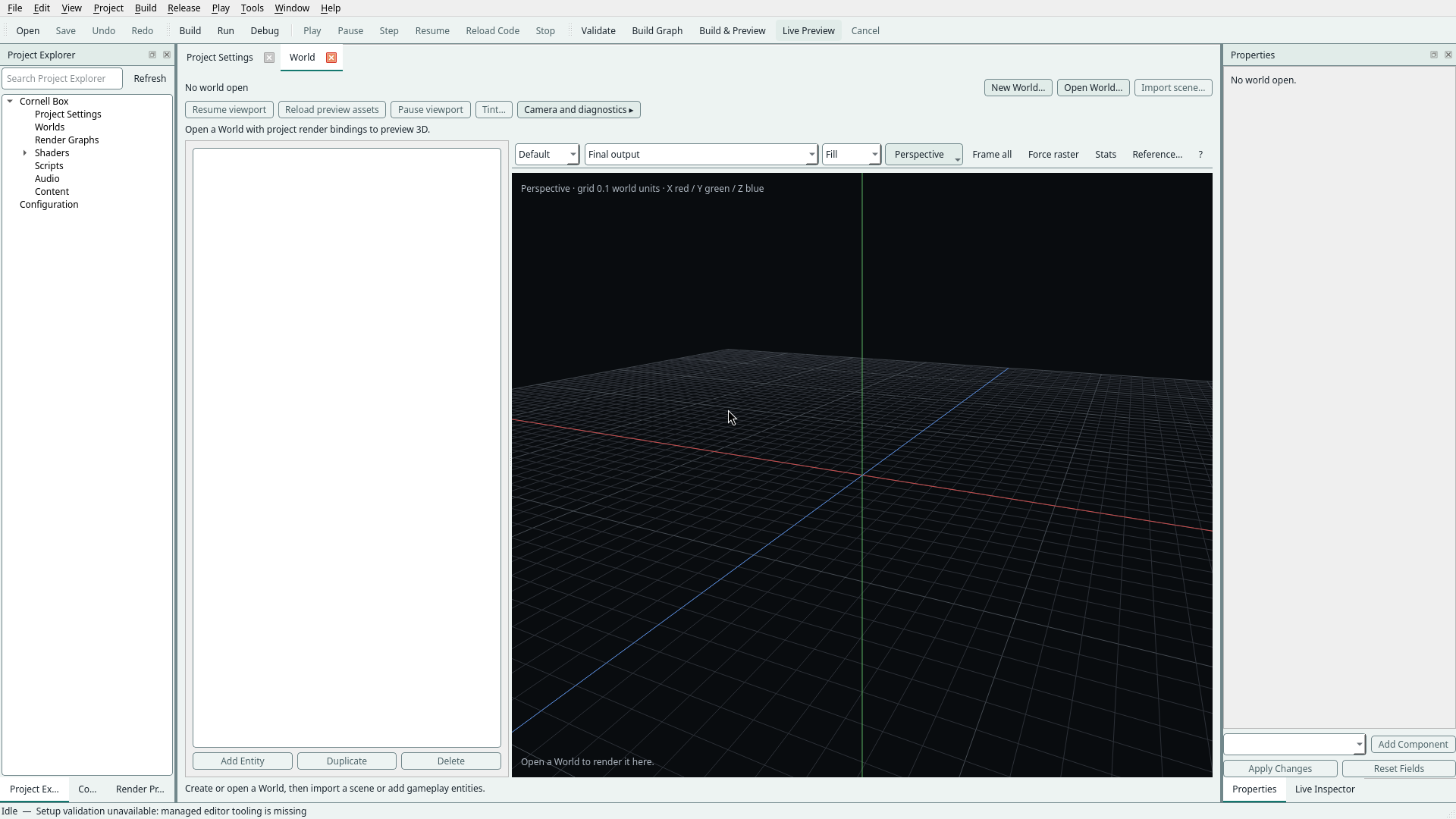
The layout follows Visual Studio, built on Qt Widgets' own docking:
- Documents occupy the centre. Opening a project opens its World, with
Project Settings as a background tab. Open other documents from Project
Explorer, Project → Project Settings or the document list at the bottom of
the Window menu. A tab shows the document's file and a
*while it has unsaved changes. Closing a tab (Window → Close Document, Ctrl+W) hides that view only; its draft stays open and quitting still asks about unsaved work. - Tab groups. Window → New Vertical Tab Group puts the active document beside the others (for example a render graph next to the World); New Horizontal Tab Group puts it below. Move to Next/Previous Tab Group, Merge All Tab Groups and the tab context menu move documents between groups. Groups share one direction at a time, up to four groups.
- View → Code and Viewport (Ctrl+Alt+V; Command+Option+V on macOS), also in the Source pane's Source menu, opens the Source editor beside the existing interactive World document. It reuses the World's viewport, camera and render device; it does not open the Render Preview image panel or create another viewport. Graph navigation temporarily collapses in Source to leave room for code; switch to Canvas to show it again. The Sources visibility preference is preserved. The World's header and hierarchy also collapse so its viewport fills the pane; returning to a single World restores them and their splitter preference. Drag the divider to size the two panes. Existing horizontal group sizes are preserved when invoking the command again, and other open tabs and drafts stay open. The project remembers the groups, divider, graph, source file and selected Source view when the editor closes normally or switches projects. These are view preferences, not a recovery copy of unsaved source text. Missing or invalid saved graphs leave the current graph intact. Live Preview keeps its existing saved-source policy; compilation progress remains in the status-bar activity chip. The Render Graph toolbar stays visible while the graph is shown in either group, so moving between code and viewport does not resize the document area.
- Tool windows dock around the documents. The calm default keeps the documents as large as the window allows: Project Explorer (tabbed with Content and Render Preview) is on the left, Properties (tabbed with Live Inspector, and Ray Paths when a capture starts) is on the right, and the diagnostics group below the documents starts closed: Error List tabbed with Output, Timing and Profiling. Each opens when there is something to show: new errors or warnings reveal the Error List, a build reveals Output, the first Play session of an editor run reveals Timing, and recording reveals Profiling. Drag a title bar to move, tab or float a tool window. View shows and focuses one (Project Explorer Ctrl+Alt+L, Properties F4, Error List Ctrl+Alt+E, Output Ctrl+Alt+O, Render Preview). The Window menu lists every tool window with a check mark to show or hide it.
- Window → Reset Window Layout restores the default documents-first arrangement, all toolbars and the calm tool-window arrangement above, sized for the current window (the outliner takes about a seventh of the width and Properties a fifth). A bottom group that is closed opens at about a quarter of the height, enough for several Error List rows. If problems are already listed, Reset opens the Error List. Reset never changes drafts, saved files or a Play session. The saved layout carries a version; an older one (before the calm default) resets once to these defaults.
- View → Focus Viewport (Shift+Alt+Enter; Shift+Option+Return on macOS) hides every tool window, the toolbars and the setup notice. When a render graph is active, it focuses that graph and hides its navigation, source tree and status strip. Otherwise it focuses the World viewport and hides the World's controls (file commands, render controls, hierarchy and status line), switching to the World document when needed. Run it again to restore the previous tool-window arrangement, sizes, toolbars and active document exactly. The viewport is never moved or recreated, only resized. Closing the editor while focused saves the arrangement Focus Viewport returns to, and Reset Window Layout also leaves it. New errors or warnings do not interrupt it; the status bar announces them instead.
- Save, Undo and Redo follow the active document tab. Focus in a tool window does not change the active document: editing a World entity in Properties and pressing Ctrl+S saves the World. Focus entering another document's tab makes that document active. Undo still acts on focused text first.
- Properties follows the active document. While the World is active it shows the entity inspector (name, component fields, Add Component, Apply and Reset). While the Render Graph is active it shows the node selected on the canvas, in the source tree or by Error List navigation: its authored fields, canvas position, Remove Node, Add Node and the configuration's connections. Edits there are Render Graph edits: Ctrl+S and Ctrl+Z act on the graph.
- Render Preview shows the World viewport through the open render graph. Build → Build Render Graph and Preview brings it forward; Live Preview rebuilds update it without moving focus or raising it.
- Error List collects the last render-graph result (graph errors and mapped shader diagnostics) and compiler/CMake diagnostics found in build output. Toggle Errors, Warnings and Messages to filter. Double-click a render-graph row to select its graph node or open its source line in the Render Graph document; double-click a build row to select its line in Output. New errors or warnings from either source bring the Error List forward, opening it if it was closed, without taking focus; repeating an unchanged result does not, so a list you closed stays closed. A details pane under the table shows the selected description only when its row cannot: multi-line or elided descriptions.
- Toolbars share the menus' commands, in groups told apart by a separator: Standard holds File (Open, Save) and History (Undo, Redo); Game holds Run (Play, Build, Stop), Launch (Run, Debug) and Session (Pause, Step, Resume, Reload Code). The Session group is shown only while a game is running or paused. The Render Graph toolbar is the context strip: it appears while a render graph is shown in any document group, so a World shown alone keeps one row of commands. Its buttons show an icon beside the label: Validate, a Build Graph split button whose arrow offers Build & Preview, a Live Preview toggle that keeps an accent edge while it is on, and Cancel. Toolbar buttons use short labels so a 1280-pixel window shows them all; tooltips give the full name and shortcut. The primary commands (Open, Save, Build, Run, Play, Stop) and the Render Graph strip also show an icon beside the label; every other button stays text only. Project Explorer rows and the Error List severities carry icons too. The icons are Lucide drawings (ISC), drawn in the palette's button text colour; see Editor icons for attribution and contribution instructions. View → Toolbars hides or shows the Standard and Game toolbars. Documents have no command rows of their own: File → New Render Graph... and Open Render Graph... open graphs, and the Build menu holds every render-graph command, including Cook Render Graph Runtime and Cancel Render Graph Job.
- Empty and error states share one
StateView: an icon, one sentence, at most one primary action with its shortcut, and for an error the cause, what to do about it and a Copy Details button that puts all of it on the clipboard. The Start Page (no recent projects), the World Inspector (no world open), the viewport when its GPU device or presentation fails, and a failed content refresh or import use it; cancelling an import is not an error. - The right side of the status bar shows the activity chip: while a build, configure, render-graph job or content import runs it shows a dot and one label (an operation phase wins over a render-graph job, which wins over an import); a job that reports progress shows a determinate bar instead. The chip is hidden when nothing runs and never opens a toast. Beside it, Problems and Warnings counts from the Error List open that tool window when clicked. The chip applies at most ten changes a second, so a fast job cannot flicker the status bar.
- When a code view is active, the status bar also shows that view's cursor position, selection, indentation, encoding, line endings, language and language-server state; position, language and line endings are clickable to change where the current milestone supports it (code editor).
- Tools → Options... edits editor preferences. Its Render Graph page holds the advanced shader-tool overrides and the native shader worker socket (build settings). Its General page turns the startup sound on or off.
Layout preferences are local to this computer. The window's tool-window layout
is saved in workspace.json (see Workspace layout (S1));
each project also remembers its open documents, tab groups and World
navigation. Layout version 5 added the Render Preview tool window: layouts saved by
older editors, other Qt versions, or invalid/corrupt files fall back to the
default, and a malformed document arrangement leaves the World open.
Qt Widgets docking has no auto-hide (pinned) tool windows, no drag-target guide diamond and no floating document windows. The docking evaluation records the libraries that would provide them.
The World hierarchy flanks the viewport inside the World document; the entity inspector is the Properties tool window. Component actions stay below the scrollable inspector fields: the component choice beside Add Component, and Apply Changes beside Reset Fields. Add Entity, Duplicate and Delete share one row under the hierarchy. Above the viewport, one row holds the World's path (hover for the full path) and its commands; Restore Recovery, Cancel scene operation and Play saved World appear only while they apply. The viewport's render controls share one row, and its navigation help is the ? button's tooltip (click it to show it at once). The render surface receives the remaining height below its shading, framing and navigation controls, including after resize.
In a default World (a project without authoring/world.schema.json), use
Add Geometry / Light below the entity list to create a Cube, Plane,
Sphere, Point Light, Spot Light, Directional Light, Sun or
Luminaire. Each command
selects the new entity and creates one undo step. Geometry is one metre across,
centred at the origin; the plane lies in XZ with its front face toward +Y.
Use Properties to edit Transform, visibility and colour, or a light's kind,
colour, intensity, range and spot angles, then Apply Changes. Save the World
to retain the objects; duplication and deletion use the regular entity commands.
Lights start two metres above and in front of the origin, aimed down 45 degrees.
Sun is a directional light of 10 lux, placed and aimed as described in
Lighting a World that renders black.
They use -Z as their forward direction and require unit scale. Point and spot
intensity is candela; directional intensity is lux. Switch the viewport to
Lit and position lights to illuminate the geometry; creation adds no implicit
lighting. Renderer profiles retain their existing light support and limits.
A Luminaire is a 0.7 m analytic LED panel two metres above the origin, facing
down. Only render graphs that read luminaires, such as the
slice-sampling-luminaire template,
are lit by it; Lit and reference capture ignore it. Selecting it outlines the
panel and its emission direction in the viewport.
Choose Add Geometry / Light → Generate Terrain… to create a heightfield in a default World. Pick Rolling Hills, Ridges, or Flat, then set a seed, width and depth, elevation bounds, feature size, roughness, and samples per side. Width and depth extend along the entity's local X and Z axes. Elevation is measured in metres along local Y. Flat uses the minimum elevation for the whole surface.
Preview frames the candidate in the World viewport. Create Terrain adds and selects it as one undoable edit. Select the entity and use Edit Generation… in Properties to preview and apply a new recipe. Cancel restores the applied World view. The entity keeps its transform when regenerated and can be moved, copied, or deleted using the same commands as other World entities. Press F in the viewport to frame the selected terrain again.
Save World keeps the seed, settings, and recipe version. The editor rebuilds the bounded indexed mesh when it extracts the World, including after reopening. The terrain uses the current viewport shading and authored lights. This first editor workflow provides a single mesh of at most 64 samples per side. Collision, sculpting, erosion, and streamed terrain are future work.
The geometry and default schema ship inside the editor, so this workflow needs no model import or project asset files. Imported scenes and these objects can share a default World. Project-owned schemas keep their existing component and asset contracts: the bundled creation commands are disabled for those Worlds; use Add Entity and the project's components instead. Existing default Worlds with empty entities remain readable without conversion.
Native World viewports now use the project render graph, falling back to the engine default only when the project has none. Shader edits update that viewport automatically. Its selectors expose authored graph configurations and attachments. The Stats toggle shows live update FPS, CPU/GPU time and readback latency; see the graph viewport measurement definitions. The current static graph profile does not provide the former Lit material preview; its input and presentation limits are documented with that workflow.
Recording CPU and GPU profiling
In the native editor, choose Tools > Profiling... or View > Profiling.
Select CPU, GPU, or Both, then use Record Profiling in the tool
window's toolbar or Tools menu. Ctrl+Alt+F9 (Cmd+Alt+F9 on macOS) uses the
same Record/Stop action in every keymap profile; some Mac keyboards require Fn.
Press it again to stop. (F9 now toggles a breakpoint when a code editor has
focus.) Mode and output cannot
change during recording/finalization. The action opens the Profiling window so
its status and Record/Stop control remain visible. The status shows elapsed time
and event counts during capture, then the saved trace's absolute path. Failed
starts identify the unavailable source or conflicting output file; Reveal Last
Trace becomes available only after a successful save. Even an idle CPU capture
includes EditorRecordingStarted and EditorRecordingStopped markers.
Each recording has a 30-second automatic limit, bounded CPU trace storage and space for 4,096 completed GPU samples. GPU recording follows the visible World viewport between recordings; an active recording retains its original source while submitted timing results are collected.
CPU records instrumented scopes in the editor process, including viewport and
render-graph ticks. Renderer scopes separate RenderGraphUpdate,
RenderGraphBuildScene, RenderGraphPrepareCameras, RendererPrepareView,
RendererSortOpaquePackets, RenderGraphPoll and RenderGraphRender. A camera
change should use camera preparation rather than rebuild scene content; inspect
these scopes when navigation stalls. Texture inspection and readback conversion
appear as EditorTextureValueRange and EditorTextureDisplayConversion.
CPU recording is not a statistical sampler or a viewport-only CPU filter.
GPU requires an admitted scene viewport with timing support. Both
requires both sources and never silently falls back to CPU. The first delivery
targets the local editor and its viewport; hosted-game recording and browser
editor recording remain separate work. Release builds with profiling disabled
report that recording is unavailable.
By default the trace is written to a unique file in the project's ignored
out/profiling/ folder (the current directory's out/profiling/ without a
project). An explicit output path must be new. Recording never replaces an
existing capture. Stop finalizes asynchronously, polling submitted GPU results
for up to two seconds without waiting on the GPU. Unresolved results are
reported in coverage; a suspended CPU event writer can delay the CPU join while
the editor remains responsive.
Use Reveal Last Trace, then Open Perfetto and load the JSON file. The viewer is external; opening it does not upload the trace automatically. If writing fails, use Retry Save... with a new destination or explicitly Discard Unsaved Recording. A new recording cannot overwrite that retained snapshot. The previous successful trace remains available after a later failure. Closing during recording stops it and keeps the editor open until saving finishes. After a save failure, retry Save or discard the retained recording before quitting.
CPU and Both also record the native project-graph viewport's wall-clock path. In Perfetto, expand Viewport N tracks:
- Frame to image ready spans owner-thread preparation through output readback and display conversion. Observed frame stages splits submission, producer completion wait, readback requests/waits and CPU display conversion.
- Between preview services fills the gaps between service callbacks, labelled with the state waiting for the next callback. These intervals include timer pacing and other GUI work; they do not imply that the CPU or GPU was idle.
- Qt presentation wait covers image delivery to the World view until its paint handler starts. Qt paint handler measures that handler, and Frame to Qt paint includes the whole preparation-to-paint path. Paint intervals shows the interval between new images painted by the view.
Select a slice for viewportId, frameId, deviceSession and outcome.
Frame/device IDs match the GPU sample identities in Both mode. CPU scopes
EditorGraphService, EditorGraphWorldExtraction, EditorReadbackRequestBand,
EditorReadbackPoll, EditorReadbackCopyBand, EditorReadbackCopyTextureBytes,
EditorGraphDisplayImageConversion and EditorWorldGraphPaint distinguish actual
owner-thread work from the elapsed wait intervals. Instant markers identify
pending GPU readback bands and unavailable transfer capacity.
Waits end when a service callback observes readiness, so they include polling latency. Qt paint completion is before compositor presentation or display scanout; these tracks do not measure either. Frame, stage and scheduling tracks overlap: use them to explain one frame's critical path, rather than summing their durations. The overlay's Readback value includes polling and conversion as well as the copy.
Viewport capture reserves 32,768 spans before recording and allocates no span
storage on the recording path. ludusViewportTiming reports capacity, span count
and dropped spans. Capture boundaries clip in-flight intervals; unfinished waits,
failures, superseded images and cleared views have explicit outcomes. GPU-only
mode excludes these CPU-clock tracks. Recording observes the existing scheduling
and readback path without introducing waits or changing its service cadence.
GPU data appears as GPU/FrameDurationNanoseconds counters on a separate named
track. Each counter is placed at its CPU submission marker, with frame and
device-generation identity and collection time in a companion event. The value
is an elapsed device interval, rounded to the nearest integer nanosecond; its
encoded unit does not promise nanosecond accuracy. It is not a GPU execution
slice aligned with CPU scopes, utilization, or display latency.
GPU/Both also records named physical passes on supported Metal/Vulkan devices.
Look for GPU/Pass/<name> [identity:ordinal:kind]/DurationNanoseconds counters.
Authored graph labels and built-in Viewport/Scene and Viewport/Composite
labels share the renderer's native debug scopes. Merged physical passes produce
one duration with a logical member count. A scope containing multiple native
operations retains each operation's ordinal. Separate ray-query batch work is
not timed by these frame-command-buffer samples.
On Metal, and on Vulkan devices with calibrated timestamps, each named pass is
also drawn as a slice, like a CPU scope, under the GPU process on the
GPU execution (calibrated) track. Slice names are the
pass names with their kind, such as Main/raytracing/raytracingpipeline (Compute).
Their times are the GPU's own start and end timestamps converted to the CPU trace
clock, so they line up with CPU scopes within the recorded
clockUncertaintyNanoseconds (typically under a microsecond on Metal and a few
microseconds on Vulkan drivers). Passes whose
execution overlaps, such as a render pass whose vertex stage starts while an
earlier compute pass is still running, appear on separate
GPU execution (calibrated, overlap N) tracks rather than as false parent and
child slices. If the clock conversion cannot be checked, for example after the
machine slept during a frame, that frame's passes remain counters only. On Linux
the editor enables VK_KHR_calibrated_timestamps (or the older
VK_EXT_calibrated_timestamps) when the adapter offers it; without the extension,
or when the driver reports more than 50 µs of calibration error, Vulkan passes
remain counters only.
The recorder holds at most 64 pass queries per acquired frame and shares its
4,096 sample slots between frame and pass results. frameSampleCount and
passSampleCount separate those totals; queryDroppedPasses and
unresolvedPassBatches report query pressure and unfinished batches. The status
reports when per-pass counters are unavailable; frame sampling can still work.
No Xcode, RenderDoc, or PIX installation is needed to record these timings.
Only completed samples count. The single frame probe and single pass batch may skip frames while a result is pending; coverage reports eligible frames, invalid samples, dropped samples and unresolved results. A legitimate quantized zero stays zero; missing data never becomes a fabricated zero. GPU recording continues when Stats is hidden, and both consumers share one sampler. An idle/hidden viewport may submit no frames: navigate or edit to exercise the scene; a completely empty recording reports no data instead of producing a misleading successful capture.
See the GPU timing contract and graphics-debugging plan for pass timing, clock calibration and later process targets.
Closing and shortcuts
File → Close Project returns to Welcome without quitting. Save/Discard/Cancel protect project settings and audio changes; Cancel or failed Save preserves the project. Stop active jobs/Play before closing. Close clears the project identity, setup result, discovery cache, document undo history and audio binding, preserving recent-project history and monotonically increasing job IDs/epochs so callbacks cannot target a later project. Quit also checks unsaved project settings before closing; Cancel or a failed Save keeps the window and its draft open.
| Shortcut (Linux) | Action |
|---|---|
| Ctrl+N / Ctrl+O | New / Open Project |
| Ctrl+S | Save the active document (World, Render Graph, Scripts, Project Settings, Audio or Configuration) |
| Ctrl+Z / platform Redo | Undo / Redo in focused text, or the active document's history |
| Ctrl+W | Close the active document tab (its draft stays open) |
| Ctrl+Shift+T (Cmd+Shift+T on macOS) | Reopen the most recently closed workspace tab |
| Ctrl+Shift+W | Close Project |
| Ctrl+Shift+B | Build |
| Ctrl+F5 / F5 | Build and Run / Build and Debug in RAD |
| F6 / Shift+F6 | Build and Play / Stop |
| Ctrl+F7 / F7 | Validate Render Graph / Build Render Graph |
| Shift+F7 / Ctrl+Shift+F7 | Build Render Graph and Preview / toggle Live Render Graph Preview |
| Ctrl+Break | Cancel the running render-graph job (also turns Live Preview off) |
| Ctrl+Alt+L / F4 | Show Project Explorer / Properties |
| Ctrl+Alt+E / Ctrl+Alt+O | Show Error List / Output |
| Shift+Alt+Enter | Focus Viewport on or off |
| Ctrl+K / F3 | Command Palette (Ludus keymap; VS Code uses Ctrl+Shift+P) / Run Command in Context |
| Ctrl+Alt+F9 | Record Profiling (every keymap profile) |
| F9 | Toggle Breakpoint (when a code editor has focus) |
| F1 | Keyboard Shortcuts help |
Two keymap profiles ship: Ludus (the house layout, Ctrl+K opens the command palette) and VS Code (Ctrl+Shift+P opens the palette and Ctrl+K is free for chords). The editor asks which to use on first run and remembers the choice; you can change it and override individual bindings later.
Window → Reopen Closed Document opens the tab in the active group with its draft intact. Repeat the command to step back through recent closes in the current project session.
The Command Palette (Ctrl/Cmd+K) searches every menu command by name with fuzzy matching: letters must appear in order, and consecutive letters, word starts and short names rank higher. A command that is not available now is shown dimmed after the available ones and cannot run. Run Command in Context (F3) lists only the commands that can run right now. Enter runs the chosen command after the palette closes; Up and Down move through the list; Esc closes it. Both read the menu bar when they open and keep nothing while closed, so a command added to a menu appears in the palette and the F1 list with its label, shortcut and availability.
The help dialog reads the same QAction bindings used by menus/toolbars, groups them by menu and has a search box. Qt's standard New/Open/Save bindings follow the platform; actions remain window-scoped and use controller capability gates. Configurable mappings remain future work. See art direction and browser strategy.
Initial S2 document interactions
Project Settings descriptor fields retain up to 64 before/after snapshots. Consecutive edits in the same field coalesce until focus changes or Save establishes a boundary. Undo and Redo change the draft; they never write the descriptor. Dirty state compares the draft's content with the last successful save, so undoing to that content becomes clean. Save keeps history and acknowledges the captured snapshot rather than any later edit. A new edit after Undo clears the redo branch. Validation failures, external-file conflicts and failed file replacement preserve the draft and its history. Accepted Open, Reload and Close reset this document history; rejected loads preserve it.
Unrelated controller updates leave unchanged fields and argument rows intact, preserving cursor, selection and Qt text undo. A pending argument-row edit is committed before Save or an unsaved-project decision. Field changes reach the current project synchronously, preventing queued edits from targeting a newly opened project. Focused editable text owns Undo/Redo first; move focus to another Project Settings control to use document history. Other work areas and live inspection do not consume project history. The Rendering resolution section uses the active render graph's history, including when a resolution spin box has focus; its canvas, Properties and Project Settings views all reflect Undo/Redo together.
The shared Save action follows the active work area. Audio retains its existing save policy. Configuration saves committed preference edits to its selected file, or asks for a path on the first save; Apply still commits the entry buffer and Save Sparse selects an export path. Configuration and project dirty states remain independent. Audio/configuration document history and live tuning history are separate follow-up concerns. In the browser, Save downloads an export and retains the existing volatile-workspace durability limits.
The bounded history primitive is independent of Qt. Project descriptor parsing, validation and persistence still use the existing Qt adapter; the complete portable document core remains pending. This slice does not complete S2: typed portable transactions, richer validation feedback, broader inspector/IME acceptance and configurable command mappings still need implementation and qualification. Regression fixtures cover history branching, save failures and conflicts, a later edit during Save, text focus, pending argument buffers, command scope and cancelled Quit. The Linux and macOS optional editor CI run the Qt fixtures offscreen and the sanitizer profile includes the editor; offscreen checks do not establish native input or browser acceptance.
With the Qt prerequisites installed, include the editor in sanitizer validation:
./init.sh --cli linux-clang-asan-ubsan --preset-only --with-editor --with-tests --no-system-install
./scripts/build linux-clang-asan-ubsan
./scripts/test linux-clang-asan-ubsan
Gameplay world authoring
The World tab owns scene placement and game-owned entity/component data in
one document, entity list, inspector and undo history. Imported geometry is an
entity: select it to edit its placement and attach gameplay components. The editor
never loads project code or guesses C++ component layouts. A project may supply
authoring/world.schema.json under its saved source directory; the inspector uses
that schema for gameplay fields. Without it, World supports scene import and
placement with an empty gameplay schema. The world-demo adapter uses this same
World workspace, document, hierarchy, inspector, Save, Undo and recovery path.
There are no separate Scene or 3D Levels authoring tabs.
Start with an example
- Use File → Open Sample → live-edit-game to obtain a writable sample copy. Opening world data does not require downloading tools or building the game.
- Select World → Open World…, then
authoring/starter.world.json. - Select Starter Cube. Edit its position or presentation fields. Units, project help, enum choices and logical asset names appear in the inspector.
- Use Apply Changes to validate all fields as one edit. Invalid text stays visible and the applied document stays intact. Reset Fields restores the last applied values. Selection and structural commands wait for Apply/Reset.
- Use Add Entity, Duplicate, or Add Component. Required components arrive with defaults; optional components have Remove Component. Tags with no properties are supported. Entity names can repeat; stable IDs differ.
- File → Save World (the normal Save shortcut while World is selected) applies valid pending fields and writes only the world document. Undo/Redo operates on whole applied edits; a focused text field retains its own text history. New World creates its file on the first successful Save.
The starter includes designer placement, artist presentation, sound asset,
localization-key, behavior-target and rendering-experiment fields. These are
authoring examples, not a runtime integration for live-edit-game: its
shipped gameplay remains driven by its existing tuning adapter. World previews applied authoring data but does not send edits to Live Inspector.
A game adapter must explicitly
read world data and map it to its typed component pools before it can affect
play. Do not assume Build and Run consumes a World document automatically.
Use cases and review criteria
Experience and discipline are independent: an experienced artist should not need C++ knowledge to edit a component, and an engine engineer should not have to implement a widget for each new numeric field.
| Consumer/task | Interaction and acceptance criterion |
|---|---|
| Introductory developer creates a pickup | Start from a named entity and project defaults; add Presentation, choose a mesh and sound, save and reopen without editing JSON. An incomplete number remains visible with an actionable message. |
| Developer moving from Unity, Unreal or Godot changes composition | Use entity list plus component inspector, add/remove optional components, duplicate and Undo. Required components explain why removal is unavailable. |
| Professional designer or artist makes a precise batch of inspector edits | Apply the name and component values atomically. A failed property prevents partial publication; Undo restores the entire edit. File conflicts preserve the draft and history. |
| Audio or localization contributor assigns content | Use labeled logical asset choices filtered by declared kind and a localization-key string. No machine asset paths are stored. This is key assignment, not translation management or audio preview. |
| Engine engineer defines custom component data | Own stable component/property IDs, explicit bounds/defaults/help and the runtime adapter. Unknown fields/schema mismatch fail closed, preserving the current document. No reflection plug-in or project binary is executed. |
| Rendering researcher adds an experiment parameter | Declare units, finite bounds, numeric/enum fields and optional components. The existing inspector renders them. This slice has float32 numeric text input; float64 precision, material graphs and experiment execution remain future work. |
| QA validates a broken or interrupted authoring session | Invalid/duplicate-key JSON, missing references, locks and stale schemas produce explicit failure. Restore Recovery is opt-in, bound to the saved world and schema, validated before use, and undoable. |
These are designed task scenarios exercised by automated regressions and visual review, not evidence of a user study. Validate with representatives of each experience level and discipline before calling the interaction broadly usable.
Project-owned file contract
Both schema and world are strict UTF-8 JSON with version: 1. See the editable
sample's authoring/world.schema.json and authoring/starter.world.json for
complete examples. Stable identifiers use 1–64 ASCII letters, digits, _, -,
. or :; they are not runtime generational EntityId values. Unknown members outside the scene extension described below,
duplicate object keys, duplicate definition/asset/entity IDs and missing
properties are rejected. Different entities may have the same display name.
The schema root has id, label, components and assets, and may declare the
scene_transform binding described below. Each component has
id, label, help, required and a properties array. Every property has
id, label, help, unit, type and default:
| Type | Additional schema / authoring behavior |
|---|---|
boolean |
Checkbox and boolean default |
number |
Finite ordered min/max within ±1e30; complete numeric input parsed by Ludus's float32 converter; untouched loaded numeric values retain their JSON value |
integer |
Finite ordered min/max within ±2147483647; integral values only |
string |
UTF-8 text of at most 512 bytes |
enum |
choices: 1–64 unique strings, each at most 128 UTF-8 bytes; default is one of them |
entity |
Empty-string default. Picker uses an entity's key in the current world (its version-2 UUID or version-1 ID) or empty for None |
asset |
Empty-string default and asset_kind. Picker uses a declared logical asset ID of that kind or empty for None |
Each declared asset has id, label and kind. The list is supplied by the
project schema; it is not automatically populated from Content Browser and does
not prove that an asset exists or is loadable at runtime. A game's importer/binder
must verify that separately. Asset kinds prevent choosing a sound for a mesh field.
The world root has schema (the schema's stable ID) and entities. An entity has
id, name and components, an object keyed by component ID; each value is an
object keyed by property ID. Every attached component supplies every declared
property. Required components are present on every entity. Deleting an entity
referenced by another entity is rejected with the referring property; clear or
reassign that reference first. Duplicate creates a new stable ID, remaps its
self-references, and preserves references to other entities. New entity IDs are
FoundationIdentity UUIDv4 text from the operating system's entropy source; if it
is unavailable, Add and Duplicate change nothing and report that in the status
line (see the UUID architecture).
The Editor opens, edits and saves both World versions, and each document keeps
the version it was opened with. A version-1 World is never converted implicitly;
convert one with ludus-cook identity (see
UUID authoring records).
A version-2 record adds a root document UUID. Each entity has uuid, label,
name and components instead of id:
uuidis the entity's identity. Entity-typed properties store target UUIDs.labelis a unique, readable scoped ID, shown in the inspector and pickers.- Add and Duplicate mint a UUIDv4 that is unique in the World. They derive the
label from the name: its lowercase ASCII letters and digits, separated by
-, at most 31 characters, with-2,-3, ... added for uniqueness. - Renaming changes only
name. The label and UUID stay the same. - A version-2 World cannot use the scene extension yet. Import Scene refuses it and changes nothing.
- New World still creates a version-1 World.
Runtime integration stays game-owned: parse/validate into temporary owned data;
create registry entities; map persisted IDs to new runtime handles; populate
ComponentPool<T> with the game's chosen types; resolve references only after
all identities exist. Publish the new world only after all phases succeed. Save
persistent IDs, never pool indices or runtime handles. The editor document is a
private Qt presentation model, not an installed engine API or serialization ABI.
Save, recovery and scope
Schema loading and opening are read-only. World files must be regular files in the source folder; symlinks and symlinked ancestors are refused. The schema is frozen while a world is open. Save refuses a missing/changed schema, a changed world source or a cooperative editor lock, keeping edits and history available. Writes use an atomic replacement with direct-write fallback disabled. The lock and baseline comparison coordinate cooperating editors, not arbitrary writers racing the final filesystem rename. New World refuses existing destinations.
Applied edits to an existing saved world produce a sibling .ludus-recovery
snapshot with schema/base and payload digests. Opening never applies it. Restore
Recovery appears beside the World's file commands on a clean document with such a
snapshot, and validates the current disk source,
schema and entire recovery payload before creating one Undo item. Save removes
recovery. Undo back to the saved baseline removes matching recovery. Unapplied
text and never-saved new worlds do not have crash recovery; Save is required to
preserve them. Each world path has one recovery slot, so concurrent authoring of
the same document should use version control and separate working copies.
Limits: schema 64 KiB, 16 component definitions, 32 properties per component, 4096 declared assets and 32 applied history entries. A World admits every object of one imported scene (the cooked import profile's 1024 objects; Bistro cooks 136) plus 128 authored entities, with 4 KiB of compact JSON reserved per entity (4.5 MiB). These bounds keep this first slice predictable; large production-world UX, hierarchy/parenting, batch property editing, prefab/archetype workflows, schema migrations, viewport gizmos, automatic runtime binding and browser import/export are still unsupported. The browser World workspace explains its native-editor requirement and disables its file actions. Both 2D and 3D authoring use the native World workspace.
World renderer and camera preview
World now has a native 3D authoring adapter using the engine's mesh, unlit material, reverse-Z view and C0 camera APIs. It extracts applied World data; it never loads project code or changes simulation state. Camera/orbit/reference controls are preview settings and do not enter Save, Undo or recovery. The engine's current lighting implementation supplies Lit materials, authored lights and shadows; Solid and Albedo remain inspection modes. See the owning renderer contract and camera contract.
Try a 3D authoring workflow
Build the native editor using Enable the rendered authoring surface; the same option cooks the trusted renderer stages.
- Open a writable live-edit-game sample. World is already visible.
- Open
authoring/rendering.world.json. Its persistent 3D viewport starts inside the World workspace. Asset validation runs in an owned worker; the editor remains responsive during bounded file reads/decoding. Hold right mouse to look and fly with WASD/QE; Alt/Option-left-drag orbits and middle-drag pans. Scroll to dolly, press F with the viewport focused to frame the hierarchy selection, or Home to frame all visible objects. - Select Starter Cube in World. Edit Position/rotation/scale or Renderable tint, visibility, mesh and color texture. Valid inspector buffers update the viewport after a short debounce, before Apply Changes commits the edit. Incomplete or invalid text retains the last valid image without changing the document or moving keyboard focus. Reset Fields restores the applied view. Tint… opens a display-sRGB picker and fills pending linear RGB values; Apply/Reset still own the transaction, while numeric fields remain available. Save World persists the applied data. Invalid fields stay in the inspector.
- Expand Camera and diagnostics. Use editor camera controls or select Preview Camera to see its authored pose and lens. Frame all visible objects explicitly recenters/rescales editor navigation without moving saved objects or cameras. Applied object transforms preserve the existing editor viewpoint so their movement/scale changes stay visible. The settings area scrolls at small window sizes.
- Select the camera entity in World to edit projection, vertical FOV in degrees, orthographic span, near/far distances or XY-follow target. Camera scale must be one. Apply validates the World schema; preview validation additionally checks cross-field lens and C0 recipe constraints.
- Use Reload preview assets after editing mesh/PNG/binding files outside the editor. An accepted preview is a frozen snapshot, not a file-watching promise. Invalid replacement files retain the prior preview with persistent stale-data feedback. Pause viewport cancels pending publication and releases its device; the viewport stays embedded. Resume viewport restarts rendering.
World-demo Worlds and schema-bound 3D Worlds render in this same embedded viewport through one device admission boundary. Launching a game also pauses World rendering and resumes it when the operation returns to Idle. Project/document replacement prevents late worker results from reopening or publishing into another document. Failed GPU setup stops the surface with feedback and preserves World edits; resuming retries.
Reopening a project restores its last World, selection, editor camera pose/lens
and focus distance, authored camera selection, splitter sizes, active tab and dock
layout.
These preferences live beside the editor's local workspace.json, in projects/
files keyed by the canonical project root. They do not alter World camera entities
or project documents. Missing Worlds and incompatible or invalid preferences
fall back to the normal workspace; reopening never cooks or downloads assets
just to restore preferences. Viewport asset validation uses the existing local
project assets. Unsaved inspector buffers are not part of this preference file.
Browser builds and native builds without LUDUS_EDITOR_RENDER_PREVIEW explain
why rendering is unavailable. The game adapter chooses the trusted preview for
the open World; it does not introduce another authoring workspace.
Why pixels turn magenta
When the World viewport draws a project render graph, magenta pixels are the
graph's failure colour: a sample failed one of its checks, and the pixel keeps the
colour until the camera or scene changes. The viewport's status line names the
check, how many pixels latched it and what to change, for example a shadow-ray
budget that the scene's emissive triangles exceed. Graphs cooked before failure
reasons name nothing; rebuild them. When the status says the reason is
unspecified, a shader set queries.HasFailed directly: build the graph, and the
Error List shows a warning at each such line. See
Explain failed pixels for the
reasons and how a shader names its own.
Select and transform objects in the World viewport
Click a visible object's triangles to select it. The hierarchy and Properties follow the same stable entity ID; clicking empty space clears the selection. The selected object is marked by its silhouette: a two-pixel line in the selection amber of the design tokens with a dark casing, drawn over the rendered image so it stays legible against both bright and dark surfaces. The outline follows the object's form, not its triangles; it traces the outer rim and the openings through the object, and leaves out edges that lie inside its own projected area. Selection works with the inspector hidden. Picking chooses the nearest geometric triangle, including back faces; texture alpha masks and shader displacement do not alter this editor query. A click tests triangles only for objects whose mesh bounds its ray enters before the nearest hit found so far. Those bounds are computed once per published scene.
Choose Select (Q), Move (W), Rotate (E) or Scale (R) in the viewport
tool menu. Drag a red X, green Y or blue Z handle; rotation uses rings. Move
changes the parent-local position, rotation changes the stored Euler degree
component, and scale changes one positive local scale component. Hold Shift
for 0.1 metre movement, 15 degree rotation or 0.1 scale-factor increments.
The handles stay 80 logical pixels long at any distance and take their colours
from the axis.x, axis.y and axis.z design tokens, with an X, Y or Z letter
at each tip so colour is never the only cue. Move ends each shaft in a solid
arrowhead and scale in a cube; a small square marks the pivot. Move also has
three small square handles beside the pivot, for the XY, YZ and XZ planes: dragging
one moves along both of its axes at once, following the pointer exactly on that plane,
and each takes the colour of the axis normal to its plane, a little quieter than the
arrows. A plane seen nearly edge-on has no square, so a plane handle is never shown
where a drag would run away. Scale replaces the pivot square with a larger centre
cube: dragging it up and to the right grows every axis by the same factor and down
and to the left shrinks them, never below 1% of the original. Both new handles have a
dark casing under them, thicken or brighten under the pointer like the axes, and win
the pointer over a shaft only where the shaft is not within 4 pixels of it; the centre
cube wins over everything near the pivot. While any handle is dragged a small label
beside the pointer reads the gesture: the distance moved in metres (X +0.250 m, or
X +0.250 Z -0.120 m on a plane), the angle turned in degrees (Z +15.0°) or the
scale factor (X ×1.25, or ×1.25 for the centre). Shift snaps the number as
well as the object. The label uses the viewport colours, the system fixed font at the
caption size of the design tokens, and is painted text in a label-sized texture, so
the handles remain one batch of triangles; it disappears with the gesture. With a tool
active, the handle under the pointer thickens and lightens and the cursor becomes
an open hand; while a handle is dragged the cursor is a closed hand, that handle
stays highlighted and the other axes fade towards the viewport colour. The half of
a rotation ring behind the pivot is dimmer, so the ring reads as a loop around the
object. Hover is tracked only while no mouse button is down, costs one handle
projection per mouse move, and is cleared when the pointer leaves the viewport. The
silhouette previews the candidate throughout a drag. Release applies one
validated World edit and refreshes the shaded scene; Undo restores the entire
gesture. Delete and Ctrl+D use the hierarchy’s delete and duplicate
commands while the viewport has focus. Escape, a tool change, hiding the view
or losing focus cancels the candidate. Save World persists the accepted placement.
A placement-only edit, from the viewport or from Transform fields applied in the inspector, does not wait for the level to be cooked again. The editor derives the presented scene from the current one, replacing only object transforms, and computes them with the scene cook's own composition, so they equal what the cook writes bit for bit. Selection, handles and further moves are available at once. The shaded image updates when the renderer has prepared the moved scene; until then it keeps the previous frame. The authoritative cook then validates the placement in the background. It parses the project scene catalog once and verifies the digest of each artifact the level uses once before assembling the bundle:
- A newer move, Undo or Redo supersedes a running validation; only the latest placement is validated. Returning to the last validated placement shows that cook's scene again with nothing left to validate.
- When the cook confirms the placement, the derived scene stays presented. If the cooked scene differs (for example because project assets changed on disk), the cooked scene replaces it.
- When the cook fails, the last validated scene returns and the status line shows the error. The World keeps the edit, as after any failed assembly; Undo removes it.
- Save World during a validation waits for it, then verifies the scene assets and writes the World as it is at that point.
- Any other edit, such as adding, renaming or deleting an entity, stops the running validation and assembles the whole level. Selection, handles and World edits wait for that assembly, as for a reassembly without a pending placement.
- Opening, creating or importing into a World, a draft preview of inspector fields and restoring recovery wait until the validation has finished.
The gizmo composes a placement exactly as the World stores it for the cook, so an object without a parent stays bit-identical when released. A parent's transform is composed in double precision by the cook; the gizmo's single-precision composition of a child can differ from it in the last bits.
Imported scene instances and project preview transform bindings expose these handles. Other extractors can still select and highlight their objects; they need an explicit authoring transform binding before the editor can manipulate them. A multiple selection, unapplied inspector fields or a running scene operation other than a background placement validation disables transform handles. Axis handles viewed directly end-on are hidden; orbit to expose them.
The outline has two implementations that mark the same silhouette.
GPU outline. While the native shared-device viewport shows a GPU frame of the project
render graph, the selected mesh is rasterized into a mask and a screen-space pass strokes
the mask's boundary into the shown image, so nothing is built from the mesh on the CPU
and selecting a mesh costs one upload of its positions and indices. The mask has no depth
test, so another object in front of the selection does not hide any of the outline. The
two-pixel amber stroke and its four-pixel casing keep their logical width, scaled to the
image's pixels. The snapshot of each graph frame stays clean, and the shown image is a second
display slot with the outline drawn over it; a camera change composes the new frame
the same way, and moving the selection or previewing a drag recomposes the shown frame from
the clean snapshot without waiting for the graph. The outline therefore sits under the
Qt overlay: transform handles, including their casings, draw over it.
If the GPU rejects the mesh or an outline draw fails, the viewport falls back to the
CPU outline until the device restarts. The renderer part is
SelectionOutlineRenderer in the renderer module, described in
Renderer systems.
CPU outline. The software readback, built-in preview and browser views, and any frame whose
camera is unknown, build the outline on the CPU from a cached edge adjacency of the selected mesh,
built once per scene and mesh, with vertices at one position welded. Each update
transforms the vertices, keeps the edges between a front-facing and a back-facing
triangle plus open edges, and drops those with the object on both sides in a
half-resolution coverage mask of its front-facing triangles. Meshes above 200,000
triangles are marked by their bounding box instead. Triangle winding must be
consistent, and another object in front of the selection does not hide any of the
outline.
The native shared-device viewport and native readback fallback show the same
selection overlay. The shared-device presentation uploads batched stroke geometry
directly to the Qt scene graph; highlighting does not rasterize or upload a
viewport-sized overlay texture. Camera and gesture changes are projected once
per Qt frame, and the readback presentation draws the same strokes in one batch.
CPU profiling includes EditorObjectOverlayBuild, EditorObjectOverlayUpload
and EditorObjectOverlayPaint to distinguish these costs, and EditorSilhouetteBuild,
EditorSilhouetteExtract and EditorSilhouetteCoverage for the CPU outline. The browser's separate
GPU canvas does not yet composite the overlay.
To compare the old painted texture with the batched geometry, build the optional
ludus_viewport_overlay_benchmark target in a native editor build with tests enabled.
Run apps/editor/ludus_viewport_overlay_benchmark from that build directory on a
desktop display. It renders the same 36,000 strokes at 1280 × 720 logical pixels
through both paths, checks for highlighted pixels, and prints JSON with the median
and maximum presentation intervals over 30 frames after warm-up. Vsync, window
visibility and device pixel ratio affect this comparison; it is an overlay fixture,
not a measurement of an entire project's frame time.
Alt/Option-drag orbit, middle-drag pan, right-drag navigation and Play input keep their existing behavior. Q/W/E/R choose tools only while the editor camera is not flying; the fly movement keys keep working while the right button is held.
World viewport navigation
The World hierarchy scrolls when the available dock height cannot fit its entity
list and commands. Import report, beside the World path, opens the full stored
report in the scrollable inspector; opening it does not reduce viewport height.
The import confirmation preview remains visible before an import is accepted.
Choose environment… selects a latitude/longitude lighting image inside the
scene's source folder and reruns that preview. Use source lighting clears the
selection. The accepted cooked World retains the selected lighting. For Intel
Sponza, select its bundled textures/kloppenheim_05_4k.hdr; its glTF's punctual
lights have zero intensity. See companion lighting environments
for orientation, provenance, reimport and raster visibility limits.
Before a scene is created or imported, the viewport shows a navigable coordinate grid using the editor camera, without starting a GPU session or adding World objects. Perspective views show the XZ ground plane and red X, green Y and blue Z axes. Orthographic views use the closest XY, XZ or YZ plane. Grid spacing adapts to navigation distance; the caption reports that spacing in world units. The empty view supports the same orbit, pan, look, fly and dolly gestures below. The grid stays visible after a scene is loaded. It draws in the same raster pass, tests against scene depth, and leaves the depth buffer unchanged. Geometry in front hides grid lines; geometry behind remains visible between them. The guide is excluded from saved Worlds, scene bounds and shadow-caster geometry. The empty view and rendered view share one grid layout. Render-graph attachment views show the grid only where their raster pass draws it; offline reference captures omit it.
The viewport toolbar’s size menu, beside the shading selector, sets the shape and resolution of the rendered image without resizing the panel:
- Fill (default) uses the whole viewport at its physical pixel density.
- 16:9, 16:10, 21:9, 4:3, 1:1 and 9:16 (portrait) show the largest centred frame of that shape at the viewport's own pixel density.
- 720p, 1080p, 1440p and 2160p render exactly 1280 × 720, 1920 × 1080, 2560 × 1440 and 3840 × 2160 pixels and scale the image to fit the panel, so resizing the panel or moving between displays does not change the rendered resolution. Hover a menu item for its exact size.
Dark bars with a thin outline fill the area outside the frame; navigation gestures work over the bars as well. The chosen size is the drawable the viewport requests, so a project graph whose OutputSize follows Viewport pixels receives it, and Play in the viewport sends it to the game as its window size. The earlier built-in viewport profile still caps its own image at 1024 pixels on the longest edge. The Stats overlay's resolution line shows what was rendered. The size is saved with viewport navigation; older preferences, and unknown saved values, open in Fill.
The toolbar's View menu switches the editor camera between Perspective and Orthographic, or snaps it to an orthographic Top, Bottom, Front, Back, Right or Left view along a world axis (the world is Y-up; Front looks along −Z). Axis views keep the pivot and the visible size there, and move the eye outside the scene bounds so no geometry is clipped. The button names the current view; after orbiting away from an axis it reads Orthographic. Top and Bottom stop 0.1° short of vertical so orbiting continues smoothly from them. Choosing Perspective again restores the field of view and the same framing at the pivot. FOV, near the bottom of the same menu, sets the perspective vertical field of view from 10° to 120°; it is disabled in orthographic views. Like other navigation, these detach an authored camera, never edit it, and are saved with viewport navigation.
The Look multiplier, below FOV in the View menu, controls mouse sensitivity for right-drag look and Alt/Option orbit, from 0.1× to 4× (default 1×). Lower it for finer aiming. It is saved with viewport navigation; changing it preserves the current camera pose and does not change pan, dolly or keyboard movement speed. On macOS, right-drag uses relative mouse/trackpad motion without repeatedly recentering the cursor. Releasing the button, pressing Escape, losing focus or hiding the viewport releases capture. If native capture is unavailable, dragging continues within the pointer's available screen area.
The editor owns a separate camera controller and publishes a validated C0 pose/lens sample to the renderer. Navigation never changes an authored camera, World Save/Undo history, or simulation state. Starting navigation from an authored camera adopts its currently visible pose and lens, including roll; it does not jump back to an old editor orbit. The first nonzero gesture detaches that preview. Zero-motion input leaves the selected camera unchanged.
| Input, with the viewport focused | Action |
|---|---|
| Right-drag | Look around from the current eye: horizontal motion yaws about world up; vertical motion pitches about camera right |
| Hold right mouse + WASD | Fly forward/backward and sideways |
| Q / E while flying | Move down/up along world Y |
| Shift while flying | Four-times movement speed |
| Wheel while holding right mouse | Adjust fly speed without dollying |
| Alt/Option + left-drag | Orbit around the current focus pivot |
| Middle-drag or Shift + Alt/Option + left-drag | Pan in the camera plane |
| Wheel / high-resolution trackpad scroll | Proportional dolly; orthographic views change visible span |
| F | Frame the selected rendered World entity |
| Numpad 7 / 1 / 3 | Orthographic Top / Front / Right view; add Ctrl (Command on macOS) for Bottom / Back / Left |
| Numpad 5 | Switch between perspective and orthographic projection |
| Home / Frame all visible objects | Fit all extracted visible geometry |
| Shift+Home / View → Go to start view | Return to an imported scene's start view |
| Escape, right-button release, focus loss or hiding the viewport | Stop fly movement and release mouse capture |
Plain left-drag is reserved for selection/tools. Double-click no longer resets the entire scene. An absent, hidden or non-renderable selection makes F a no-op. Framing uses transformed mesh bounds, fits both viewport axes, and preserves orientation. Pan uses the current lens, focus distance and drawable height, so resizing and display scaling do not change the intended displacement. Fractional pointer/scroll input is retained rather than rounded to mouse notches. The controls hint stays visible above the image. On a Mac trackpad, hold Option while clicking and dragging to orbit, add Shift to pan, and use two-finger scroll to dolly. These gestures do not require a secondary or middle button. Frame all beside the shading selector fits the scene without a Home key. Fly/look still uses a held secondary click (including macOS Control-click) and WASD/QE. On Cocoa and X11, fly look recenters the captured pointer and restores its starting position on release. Wayland forbids pointer warping through this Qt API, so it uses the delivered drag motion; continuous look at the screen edge still needs a compositor-supported relative-pointer integration.
Focus distance is independent of the scene radius. The numerical safety range
is 0.000001–10000000 world units, with origin-zero camera coordinates bounded
to 10000000 units per component; rejected updates preserve the accepted camera.
Framing/dollying adapts the perspective near plane for close inspection. The
Camera and diagnostics controls expose absolute focus distance, and project
preferences retain the owning camera pose/lens and pivot distance. Existing
orbit-only preferences are migrated on load.
This is editor navigation using C0 fixed publications, not an implementation of the proposed C1 director, transitions, damping, or C2 collision. Mouse displacement is applied once per event; fly movement integrates presentation elapsed time and caps a single update at 100 ms rather than integrating the entire duration of a UI stall. Navigation continues to use the current project's extracted World and existing GPU frame ownership; pending or failed scene preparation retains the last drawable view.
The control vocabulary is adapted from Epic Games' Viewport Controls.
Audience tasks and acceptance cases
| Consumer/task | Supported path and observable acceptance |
|---|---|
| Beginner follows a starter | Open the shipped textured cube, preview, edit a named position field, Apply, Save and Undo. Navigation never dirties the document; required transforms already exist. |
| Unity/Unreal/Godot user blocks out a scene | Add Renderable to an entity, assign declared mesh/texture, adjust XYZ rotation and positive scale, then frame all or select a camera. Asset IDs and camera selection survive unrelated edits. |
| Artist/designer/audio/localization contributor reviews content | Mesh/color-texture choices use the existing typed inspector; non-rendering entities remain part of World. Edit visible/tint or camera framing without a compiler/toolchain command. Pending inspector text is never silently treated as applied geometry. |
| Professional integrates a bounded project scene | Bind existing project component/property IDs, use indexed XYZ/UV meshes and sRGB PNG color textures, and check lens/capacity errors before publication. No glTF/FBX importer or production-scale scene claim is implied. |
| Engine engineer owns a custom world | Supply the explicit semantic mapping below. No C++ component layout is guessed, no ECS storage is borrowed and no project library is loaded. Runtime extraction remains game-owned. |
| Rendering researcher compares visibility | Use the copied submitted/visible/culled/draw counts, authored-camera trace and reference mode. Reference disables CPU culling/sorting/instancing, while normal GPU clipping still applies. This is inspection, not a profiler or lighting/shadow workbench. |
| QA tests broken inputs and lifecycle | Corrupt JSON/PNG/indices, retarget a path, change lens ordering, close during a load, switch documents, resize and reopen. Failures preserve authoring data; stale workers cannot publish and stale preview feedback stays visible. |
These are designed acceptance scenarios and automated/native checks, not representative-user interview evidence. Native frame acceptance and existing renderer pixel tests serve different purposes; offscreen widget tests do not prove displayed GPU pixels, pointer interactions, IME or screen-reader behavior.
Project-owned preview bindings and assets
The source root supplies authoring/render.preview.json, a strict version-1
object containing schema equal to the World schema ID, transform, renderable,
camera, meshes and textures. Each semantic role is an object with a
component ID and properties map. Component and property IDs may be renamed:
the map keys below are semantic names; the map values are project property IDs.
The camera role may be null when the project uses editor orbit only.
An optional light role maps an authored photometric component, and an optional
luminaire role maps a panel luminaire; absent or null keeps older descriptors
valid.
Unknown fields, duplicate keys, missing/duplicate mappings and wrong property
types reject. The shipped descriptor is a complete example.
| Role | Required semantic map keys and property types |
|---|---|
| transform | x, y, z, rx, ry, rz, sx, sy, sz: number. Translation uses world units; rotations use degrees, applying X then Y then Z; scales are positive. |
| renderable | mesh, texture: asset; visible: boolean; r, g, b: number in [0,1], interpreted as linear tint. Empty texture selects flat color; visible renderables require a mapped mesh. |
| camera | projection: enum with supported values perspective, orthographic, infinite; fov, span, near, far: number; follow: entity. Empty follow is fixed; nonempty follow resolves a transformed target through C0's immediate orthographic XY recipe with zero offset. |
| light | kind: enum (point, spot, directional); enabled: boolean; r, g, b: number in [0,1] linear hue; intensity: number in [0,1000000], candela for point/spot or lux for directional; range: number in [0.01,1000000] metres; innerAngle, outerAngle: number in degrees, 0 ≤ inner < outer < 90. |
| luminaire | enabled: boolean; halfExtent: number in [0.001,1000] metres; radianceScale: number in [0,1000000]; beamWidth: number in [0.001,1]; beamSteering, beamSpread, beamTwist: number in [0,2]. See the slice-sampling-luminaire template for their meaning. |
Renderable/camera/light/luminaire entities must also have the mapped transform component. A luminaire, like a light, requires unit scale and emits along -Z; its tile columns run along +X. At most 8 enabled luminaires are admitted. Lights require unit scale and use -Z forward; position and rigid rotation update authored lighting, with persistent World entity IDs identifying the source. Disabled lights are omitted without removing their authored component; the World's Lights list switches them as well. The shipped schema includes an optional Light component, which users attach explicitly. Camera rotation is rigid, +Y up and -Z forward; XY follow requires identity rotation. Other entity components remain untouched. Camera selection uses the persistent World ID and falls back visibly to editor orbit when the selected camera is removed.
meshes and textures are arrays of { "id": "...", "path": "..." } entries.
IDs must already be declared in World schema assets with kind mesh or texture.
Paths are normalized project-relative regular files; traversal, absolute paths,
symlinks and unreadable files reject. Mesh files are strict JSON objects with
version: 1, positions (XYZ arrays), matching uvs (top-left XY arrays) and
triangle-list indices. Each index must be a nonnegative integer JSON token within the vertex array
(decimal/exponent indices are not accepted).
Meshes have at most 4096 vertices/12288 indices and a 1 MiB file limit. PNG color
textures have a 4 MiB file limit, at most 2048 pixels per axis, one initialized
mip and nearest/clamp sampling; bytes are interpreted as sRGB with opaque output.
PNG profiles do not select another render color space in this adapter.
The adapter validates at most six declared meshes/eight textures and eight distinct texture/tint combinations (identical surfaces are shared), within the renderer's fixed material-version budget. World retains its 128-entity bound. Positions, transformed vertices and numeric extraction are bounded to ±1,000,000. Resource admission can fail earlier on a particular device; file/schema validation does not promise GPU availability. It validates every declared preview asset, including unused entries.
The sample cube mesh, texture and rendering World are editor authoring examples; they do not drive live-edit-game's runtime. High-resolution bake authoring, masked/painter surfaces, UV/sampler/mip editing, mesh importers, viewport picking, transform gizmos, hierarchy/prefabs and browser rendering remain later slices.
Project-owned 3D levels and reference import
Use World for scene placement and gameplay authoring. There is no separate 3D Levels tab. The cooked-scene importer and renderer are services beneath World; they do not expose another object hierarchy or authoring document.
- Create a project or open an existing project. Missing/stale SDK setup is reported by the normal project checks; explicit Repair owns setup changes.
- In World, choose New World… or Open World…, using a
project-contained
.world.jsonpath, for examplescenes/main.world.json. - Choose Import scene… and select
scene-v4.pbrtfrom the supplied staircase2 reference directory. Import cooks assets into the project. The admitted instances join the current World's entity list in one undoable edit, and the viewport shows the scene from its own camera (its start view). - Select an imported entity. Its Scene instance inspector edits local position in metres, rotation in degrees, and positive scale; gameplay fields and Add Component are in that same inspector. Apply Changes validates placement, name and component values together. Valid draft fields update the embedded viewport before Apply; invalid buffers retain its last valid image. Camera and material data retain the imported scene profile. A read-only Material group lists the decoded material the viewport renders: its source name, scattering model, linear reflectance, metallic and perceptual roughness, the conductor IOR/extinction or coating IOR/thickness and GGX alpha of those models, texture maps, alpha mask and emission. Values appear once the viewport has loaded the scene; materials are not editable there.
- Duplicate/Delete and World Undo/Redo act on the complete entity, including its scene binding and gameplay components. Parent removal is refused while its children remain. Invalid fields preserve the previous applied document.
- Save World verifies the cooked-scene assets before the atomic document write, independently of viewport availability. During imports and asset/save operations, editing and Save wait for completion; draft preview assembly keeps text fields available and coalesces continued typing. Cancel scene operation retains the previous document. Reopen reads the project's cooked assets without needing the original source directory. A project render-graph build or activation failure ends pending scene preparation with its diagnostic instead of waiting indefinitely for a first frame. The last presented viewport image is retained. Repair the graph and reopen the World to retry; ordinary raster navigation requires a valid raster output, not a ray tracing pass.
Open World… also accepts an existing .lulevel file. Successful conversion
creates an unsaved sibling <level-name>.world.json; it preserves the original
level and refuses an existing conversion destination. Failed conversion preserves
the active World. Save publishes only the converted World document. Existing
.world.json documents without scene data remain readable.
Edit a coated-diffuse material from World
Select an imported object whose Material model is Coated diffuse. In its Material group, enter the isotropic GGX alpha, coating index of refraction (IOR), and optical thickness.
- Apply Changes gives the selected slot its own coating when the values change. Use Inherited Coating rejoins the shared instance or imported defaults.
- Apply to Shared Coating edits the World instance for every slot inheriting that imported material. Review the affected slots before confirming. Slots with their own coating keep their values. Apply or reset other inspector edits before changing the shared coating.
Both actions are undoable. Save World preserves the shared and slot coatings across reopening. Reimport resolves newly placed slots through the same source material identity, so they inherit its shared World coating.
The viewport retains the previous drawable scene while the next version prepares. Invalid fields keep their edit buffers available for correction. If assembly fails, use the reported repair or undo the edit. Matching coatings for the same source material share one cooked record, including values that match the imported defaults. The built-in viewport reuses draw materials for matching nonemissive surfaces with the same tint.
The raster view approximates changes in coat roughness. A compatible reference capture uses the authored alpha, IOR and optical thickness together. Coated-diffuse reference profile
Assign and edit a project BRDF
Import a Ludus scene source with a project BRDF on one of its objects. To use that BRDF elsewhere, select another World slot, choose the material by its project name in the Material group, then click Assign Project BRDF. The assignment uses the imported roughness and keeps the slot's inherited binding available through Use Inherited Material.
To vary the selected slot, edit Project BRDF roughness and click Apply Changes. Equal values on the same material share storage. The assignment and roughness edit each support undo and redo, and Save World keeps both across reopening.
The raster viewport approximates the surface using base color and roughness. The reference paths and Wave Tracing evaluate the authored terms. Metropolis also requires the program's fixed-dimension reflection declaration.
Repair an unsupported imported material
When a PBRT scene assigns an unsupported named material, World keeps the geometry and marks those surfaces purple in its built-in viewport. Select one of the surfaces to see its imported name and the unsupported material diagnostic in Material. Choose a replacement already used on a supported imported slot in this World, then select Map to existing material. Review the affected slots and choose Map and apply.
One World edit maps all slots that share the imported material identity. The previous view stays visible while the repaired scene prepares. Undo restores the diagnostic and redo reapplies the mapping. Save World keeps the mapping on reopen. Importing the same source again adds its geometry with the mapping already applied. The PBRT file and original slot assignments are preserved.
A reference capture requires resolved materials. The purple color is a viewport diagnostic, separate from the World's lighting.
Scene start view
A World with an imported scene has a start view: the level camera (eye,
target, up and a vertical fov in radians). Import sets it from the source
scene's camera. For pbrt that is the LookAt/Transform before Camera, with
fov converted to the vertical angle; a scene without a usable camera gets a
view framing its bounds. Importing another scene into the level replaces the start
view with that scene's camera.
- When a World opens without saved viewport navigation for it, the viewport starts at the start view instead of framing the bounds. Saved navigation, which the editor keeps per World on this machine, still takes precedence on later opens.
- View → Go to start view (Shift+Home with the viewport focused) moves the free editor camera there at any time. The target becomes the orbit pivot and its distance the focus distance; the field of view is clamped to the editor's 10°–120° range. It detaches a selected authored camera like other navigation.
- View → Set start view from this view stores the current perspective view as
the level
camera: the eye, a target at the focus distance, the camera's up direction and its field of view. It is one World edit: Undo restores the previous start view and Save World keeps it. Orthographic views have no field of view and are refused.
The viewport keeps its own aspect ratio, so a start view can show more or less of the scene than the source renderer's film. Thin-lens depth of field is not imported.
The optional World root scene contains the level's version, persistent id,
name, profile, camera and imports, with no second object list. A root
disabled_lights list beside it records switched-off lights. An imported
entity's optional scene stores mesh, material, parent, the nine-number
imported affine basis, and, without a schema binding, three-number position, rotation and scale.
The entity ID and name are the only authoritative object identity and label.
Rotation applies X, then Y, then Z relative to the imported basis; unit scale and
zero rotation preserve source shear and orientation. Position is local to the
parent. Placement values are finite and bounded to ±1,000,000; rotations are
bounded to ±360 degrees and scales must be positive. A schema can explicitly bind a required numeric component with
scene_transform, for example:
"scene_transform": {
  "component": "transform",
  "position": ["x", "y", "z"],
  "rotation": ["rx", "ry", "rz"],
  "scale": ["sx", "sy", "sz"]
}
Each array names three distinct number properties; all nine must exist on the
required component. This binding makes component values the placement source for
imported instances. Their scene then stores only mesh, material, parent and
basis, and the inspector displays the component's transform fields once.
The live-edit-game sample declares this binding. The editor does not infer it
from component names. Without a binding, the built-in Scene instance placement
fields own the imported transform. Scene metadata and components are saved and
recovered together, with one history.
When authoring/render.preview.json is present, schema-bound visible meshes and
imported geometry compose into the same embedded viewport. Scene instances use
their cooked bindings; they are not rendered a second time through the schema
adapter. The combined World is a LUSCN version 6 bundle, so the import profile
permits 256 meshes, materials and textures and 1,024 visible instances (see
the import profile);
overflow retains the previous viewport and reports the capacity. Alpha-masked
imported materials are cut out in Lit, Albedo and the debug views; Solid shading
draws them covered. Imported surface maps (normal, roughness, metallic), emission
maps and tangents shade Lit and the Normal, Roughness and Metallic debug views
(LUSCN v6);
Albedo and Solid ignore them. Schema meshes receive generated shading normals and
matte materials in this combined lit profile; their linear tints are baked into
transient sRGB texture copies. Original assets are preserved. Worlds without
imported scene data retain their existing unlit preview adapter.
Lighting a World that renders black
An imported scene can arrive without usable lighting. The Intel Sponza glTF
declares 24 punctual lights, its sun among them, all with zero intensity; the
importer keeps them disabled and reports LIGHT_DISABLED in the import report
(see Selecting a companion lighting environment).
Its only emitters are small light bulbs of radiance one.
The editor checks the World it renders. When the World presents no enabled analytic light, environment or luminaire, and its emitters' luminous flux spread over the surface of the World's bounds gives under 0.01 lux, it warns that the World renders almost black. At exposure one, a surface of albedo 0.5 under 0.01 lux encodes below 2% of sRGB white; Sponza's bulbs give about 0.001 lux. The estimate counts an emission map at its mean and ignores occlusion, so treat it as a guide. The warning names the disabled imported lights and the emitters' estimated illuminance. It appears in the viewport status and as a Renderer preview row in the Error List; render graphs that read only luminaires keep their own luminaire warning instead. An unlit viewport never shows it.
In a default World, choose Add Geometry / Light → Sun, or double-click the warning: a confirmation box then offers Add sun, with Cancel as the default. Both create the same directional light entity named Sun of 10 lux, aimed like the first disabled imported directional light that shines down, or from 60 degrees above the horizon when there is none. It is placed above the center of the World's bounds, where its gizmo is visible. Sponza's sun comes from 56 degrees above the horizon, along the nave. 10 lux is a display choice for exposure one, not daylight: a surface of albedo 0.5 facing the sun has a radiance of about 1.6 nits. Adding the sun is one undoable edit that selects it; set its intensity, colour and Transform rotation in Properties, and save the World to keep it. The viewport's raster lighting has no indirect bounce, so areas the sun cannot reach stay dark. Reimporting with the scene's bundled sky through Choose environment… lights them too. A project-owned schema gets the instruction without the repair.
Switching lights
The Lights list under the World entity list switches individual lights off and on without editing or re-importing the source scene. Use it to compare a render against another renderer's image of the same scene when the source file adds lights the other scene never had, or to see what one light contributes.
The Kind column labels imported emitters as Area light and labels both imported and authored analytic lights as Directional light, Point light or Spot light. An imported area light can cover several shapes that the importer merged because they share radiance, sidedness, power and material. The row tooltip shows its radiance or luminous power and object count. See the import budget planner.
Use the checkbox on any light row to switch it on or off. Solo keeps only the selected light on across imported and authored sources. Enable All switches every light back on. Each action is one World edit. Undo and Redo restore the previous state, and Save World keeps it.
A switched-off light keeps its identity and authored values. The viewport, reference path tracer, render graphs and the Light Transformer see no emission and no light from it, and no light sampler picks it. Toggling an imported light re-presents the already decoded scene without a re-cook, and accumulation restarts. A running reference capture keeps the scene it started with; start a new capture after switching. The switches belong to the editor's World preview. They do not change cooked assets, so a static-lighting bake, which reads the cooked definition, and a packaged game still see every light.
The World root stores the switched-off imported sources as disabled_lights, a
list of { "kind": "emitter" | "light", "source": "<16 lowercase hex digits>" }
entries naming an emitter group's AreaSourceId or a light's SourceId. Only
switched-off sources are recorded, and the list is removed when every light is
on, so a World without switches keeps its earlier bytes. It is admitted only beside
a root scene, with unique entries and at most one per import-profile material
plus one per cooked light. A re-import can regroup emitters. Switches the new
scene does not contain appear as Missing emitter or Missing light rows.
Remove Missing forgets those switches.
Earlier built-in viewport profile
The following records the built-in preview implementation and its platform qualification. Native World documents now delegate to the project graph workflow, which states its static input profile and asynchronous readback limits. They do not expose the separate engine shading and reload controls below. Instead, the graph's output selector offers this producer's Albedo and debug views (Normal through Wireframe) after the graph's own outputs; see the World viewport output selector. Browser preview and standalone renderer tests retain that built-in producer.
Build the native Editor with the rendered authoring option. This first host profile requires macOS or Linux. Its source importer supports Modern Hall/staircase2's bounded PBRT/PLY/TGA subset, with grouped static room surfaces and emissive geometry. It is not a universal PBRT/glTF/OBJ importer. Unsupported features preserve the active scene. The embedded native viewport renders the selected World's current snapshot and camera through the GPU raster renderer, bounded to 1024 pixels on its longest edge. Valid field drafts, orbit, pan, zoom and resize update the GPU view. Both project binding previews and imported lit scenes share their original GPU display textures with Qt; presentation performs no CPU pixel readback or image upload. The renderer tone-maps and encodes its RGBA8 display image once. Unlit textured bindings use a linear RGBA8 intermediate; imported scenes in Lit mode prefer HDR when available.
The shading selector above each viewport defaults to Solid — neutral preview shading. It gives surfaces a neutral material and imported geometry an editor-only directional fill and ambient contribution, so imported rooms remain visible for inspection and editing. Albedo — unlit surface colours displays base-color textures and material tints; emitting meshes with black authored albedo remain black in this view. Lit — scene lighting displays authored analytic lights, emitting surfaces, shadowed area-light proxies and authored environment lighting. During resource preparation, the viewport retains its last drawable GPU image until Qt presents the replacement. A failed replacement reports its error without clearing that image; a later scene or shading change can retry preparation. When no image remains to retain, the viewport itself shows the failure reason, including the preparation stage's specific error, instead of its empty-viewport hint. Switching modes keeps the World, camera and layout; the shading choice is restored with the project's viewport preferences. Older preferences without a shading choice open in Solid mode. These visualization overrides do not change authored materials or add lights to the World. Solid lighting is a navigation aid, not the imported scene lighting.
Debug views follow Lit in the selector. Each replaces shading with one quantity per pixel so you can inspect it directly:
- Normal — world-space normals as colour: +X red, +Y green, +Z blue.
- Depth — distance from camera, near purple to far yellow: linear distance between the camera's near plane and far plane, tightened to the scene's bounds so visible geometry spans the full range. Depth and Light count use the perceptually uniform viridis ramp, and a key in the viewport's bottom left names both ends.
- Roughness — smooth black to rough white.
- Metallic — dielectric black to metal white.
- UV — texture coordinates as red/green: the first UV set.
- Light count — lights reaching each pixel as a ramp: counts lights whose shadowed contribution is nonzero: dark purple for none, then through teal and green to yellow (16 or more).
- Wireframe — triangle edges only: every triangle's three edges as
one-pixel lines in light grey, dimmer where a surface turns edge-on to the
camera. Edges are depth-tested only against other edges, so hidden ones show
through as in other engines' wireframe views. The GPU draws them with line
rasterization (
rhi::RasterFillMode::Lines), which Metal and Direct3D 12 always provide and Vulkan provides with thefillModeNonSolidfeature. WebGPU has none, so the browser editor's GPU viewport reports that Wireframe is unavailable; its software viewport draws the same edges on the CPU.
Scenes with authored lights use the same surface maps as Lit. Light count also uses Lit's clusters and shadows, so it is bounded by the same budget: 128 lights, counting one area proxy per planar emissive patch, and 80 shadow faces. The other debug views read no lighting, so they build no lights, area proxies or shadows and draw any World, however many emissive patches it has. Authored Worlds without lights get editor-derived vertex normals when the mesh has none. Light count is the ramp's dark purple end there because no lights exist. Overdraw is not offered, because the world pass has no additive blend state to count overlapping fragments. The debug view is saved like the other modes. Older preferences open in Solid.
The Stats toolbar toggle overlays averaged frame statistics in the viewport's top-left corner:
- GPU: device timestamp time for the frame.
- CPU: time spent preparing and submitting the frame.
- Resolution and draw count.
- Passes: the total GPU time of the named render scopes, then the six slowest
scopes ("Viewport/Scene", the render-graph passes, and so on) with their rolling
average in milliseconds. A bar behind each row shows its share of the slowest
pass, which is drawn in the warning colour; any further scopes collapse into one
+N morerow. The same rows appear in the graph viewer's overlay.
Per-pass timing uses the RHI's timestamp queries (ArmGpuPassTimings), which
Vulkan and Metal implement. The queries are armed only while Stats is on (or
a profiling recording runs), so the overlay costs nothing when it is hidden: no
timestamp is written and nothing is polled. Where the backend has no per-pass
queries (Direct3D 12, WebGPU, WebGL and the browser canvas) the line reads
Passes: n/a while frame GPU time, if the backend provides it, keeps working.
Passes are summed per scope, so a scope that issues several encoders shows one
row, and a scope that stops rendering leaves the list after 30 batches.
CPU and GPU times show their mean, nearest-rank p95 and maximum over the last
30 accepted samples (VIEWPORT_STATISTICS_AVERAGE_FRAMES). A low mean with a
large maximum identifies intermittent stalls; these are separate CPU and GPU
series, not synchronized frame pairs. The overlay refreshes four times a second.
GPU timestamps are read back with latency and
the editor never waits for them, so the GPU line shows … until the first
sample arrives. It shows GPU: n/a when the device or browser provides no
timestamp queries.
For repeatable editor CPU/GPU workloads and nightly history, see Runtime profiling.
On macOS and Linux the overlay is an item in the viewport's own Qt Quick scene, so it is drawn above the frame. A sibling widget would be hidden under the embedded native window. The Linux readback canvas paints the overlay over its frame. In the browser, the engine canvas covers Qt widgets, so the statistics appear as a line under the viewport toolbar. The toggle is saved with the viewport preferences.
The Live shaders toolbar toggle reloads the viewport's renderer shaders while
you edit them. It watches the engine checkout the editor was built from: the
recipes in modules/graphics/renderer/shaders/recipes.json, their sources and
their include roots, as returned by ludus_get_renderer_shader_roots. Saving a
file starts a background build after 250 ms without further changes. The build
runs ludus-shader-worker for each recipe stage whose files changed; other
stages reuse their last output. Each build sends the worker only the recipe
sources and the files their quoted #include directives reach, in any
preprocessor branch. Other helpers under the roots are watched but not sent, so
they don't count against the compiler's snapshot limit (MAX_SOURCE_FILES and
MAX_SOURCE_BYTES in ludus/tooling/shader_compiler/compiler.hpp). The UI
thread never compiles. Once every stage
succeeds, validates with spirv-val and keeps its interface, the preview
prepares a new resource generation. It swaps at a frame boundary, after the old
generation's GPU work has retired. Every shading mode, debug views included,
uses the new code. The overlay below the statistics then shows
Shader reloaded (N ms) for three seconds. N is the time from the start of the
build to the first frame drawn with the new shaders.
When a stage does not compile, the viewport keeps drawing with its last good
shaders. A red overlay names the file and line, the compiler's message and the
first lines of its output. Long lines are shortened to the viewport; the
toggle's tooltip holds the whole text. The next successful build clears the
error. Running pipelines keep the built-in binding layout, uniform layout and
vertex inputs. A stage may stop using a resource. Adding a resource, moving a
binding, resizing or reordering a uniform buffer, or changing vertex inputs needs
new pipeline layouts. These edits show Shader interface changed · restart
required and keep the last good shaders. Rebuild and restart the editor to draw
them. Turning the toggle off stops watching and returns to the shaders the
editor was built with. The toggle is not saved, so the editor never starts a
worker unasked.
The editor starts its own worker from the build tree, with a private socket that
it removes on exit. Native editor builds with 3D preview include this worker
automatically, including direct CMake builds and reconfiguration of older build
caches where LUDUS_BUILD_SHADER_WORKER was off; see
Native shader worker.
On macOS this needs macOS 15. To use a worker you started yourself, set
LUDUS_SHADER_WORKER_SOCKET, or set Native shader worker in Tools → Options...
→ Render Graph. Without a worker the overlay explains how to get one. Live shaders
are available in the native editor on macOS (Metal) and Linux (Vulkan). The
browser editor has neither the worker nor a source tree, so it has no toggle.
Saved project render-graph shaders reload through the Render Graph's Live Preview
instead.
Lit uses raster direct lighting and real-time shadows. HDR or constant authored environments supply irradiance and specular reflection. No editor fill is added to Lit. Navigation, resize and scene edits never start a static lightmap bake. The status shows light, planar proxy and shadow counts. Saved World assets preserve authored lighting through reopen and relocation; legacy v1/v2 imports retain historical two-sided emission.
This bounded quality profile uses one centroid quadrature proxy per connected planar emitter patch and hard cube-map shadows. It supports up to 128 admitted lights and 80 shadow regions: point/area lights consume six faces, while spot/directional lights consume one. The 2048-pixel atlas packs guttered cells; capacity, malformed or unsupported source topology rejects rather than dropping illumination. Zero-area triangles, common in imported meshes, never reject a scene: they carry no power and form no area proxy, an authored World mesh gives them an inert placeholder normal (for example the staircase2 reference scene). Curved or concave sources can exceed this proxy profile. The viewport does not calculate static indirect transport, soft area shadows or spectral PBRT parity. See the owning renderer contract for the separate static-lighting transport API. Optional GPU path tracing remains a separate renderer API. For a path-traced ground truth of the current view, use reference capture.
Qt Quick's native surface is embedded in the World splitter and uses the basic
owner-thread render loop. The adapter admits the device and queue Qt Quick renders with, imports
its RGBA8 texture, and retires replaced reads only after Qt submits the consumer
frame. The scene graph samples only the active image, whose read stays open until
a synchronized replacement takes its place; the replaced read is released at
afterFrameEnd or on the next service tick, after Qt's submission either way.
QQuickWindow::grabWindow synchronizes and renders without the frame signals and
may itself promote the pending image; the same rule covers it. RHI and Qt submit
on one serialized queue, so a lease error would show a newer frame, never torn
pixels. Resize, scene replacement, Stop and source invalidation release texture
leases before renderer/device cleanup. Camera and splitter restoration keep the
existing project-local preferences. The native child surface follows Qt window
container stacking rules; widgets cannot overlay it arbitrarily.
Metal sharing requires Qt 6.4+ with Qt Quick and the Cocoa display plugin. On
Linux (X11 or Wayland) the editor creates the Vulkan device itself, on Qt's
QVulkanInstance, choosing a graphics queue that can present to the viewport
window and enabling VK_KHR_swapchain. Where the adapter supports
VK_KHR_external_memory_fd, the editor enables it too (with
VK_KHR_external_memory where still listed), so Play in the viewport can import
the game's images onto this device. Qt Quick adopts that device through
QQuickGraphicsDevice::fromDeviceObjects, available in every Qt 6 release, and
the RHI admits the same device and queue. Qt before 6.6 cannot report the queue of
a device it created itself; with this ownership it never has to, so Ubuntu 24.04's
Qt 6.4 shares GPU textures without CPU readback. Hardware adapters are preferred
over software rasterizers. The editor destroys the device only after Qt Quick and
the RHI have released it.
The viewport keeps presenting on Wayland after it is hidden and shown again, for
example by switching work tabs or hiding the editor window. QtWayland before 6.5.1
has two bugs on that path. It keeps the Vulkan surface of the unmapped
wl_surface, so the next present targets a recycled protocol object and the
compositor disconnects the editor. It also creates no subsurface for a viewport
shown before its parent window, so that viewport is never exposed again. On those
releases the editor destroys the viewport's native window when it is hidden, which
releases Qt Quick's swapchain and Vulkan surface. It recreates the window once the
parent window is visible, and Qt Quick builds a new swapchain. The shared device,
scene graph and frame leases persist, so presentation resumes from the same GPU
textures without readback. Releasing a swapchain makes Qt wait for the device to
go idle, as it already does on resize. Newer Qt releases and X11 keep Qt's own
hide/show handling.
Qt 6.4's grabWindow interprets every non-BGRA8 swapchain readback as 8-bit RGBA.
On GNOME Wayland, Mesa offers Intel GPUs an RGBA16F swapchain first, so grabs there
look striped although the screen is correct. On X11, grabs match xwd captures of
the window exactly; use X11 for pixel evidence.
If no adapter can present to the window with a shareable device, the viewport
falls back to an offscreen path. The engine creates its own headless Vulkan device,
renders the same raster viewport into its two display images, and copies the
latest completed image back to the CPU in bands that each fit one RHI transfer
slice. A plain widget paints that QImage. The renderer keeps drawing into the
other image while one is being copied, and the GUI thread only polls, so no call
waits for the GPU. World navigation controls work as
in the shared path; resizing recreates the offscreen targets. The headless device
admits the same storage budgets and raster profile as the shared device, so Lit
shadow atlases fit on both paths. The copy costs some latency and bandwidth, and the
frame is capped at 1024 pixels on its long side, the same as the shared path. Set
LUDUS_EDITOR_VIEWPORT=offscreen to force this path for testing.
Offscreen Qt plugins without that variable, or machines with no Vulkan driver, keep document editing and asset validation available, and the viewport explains why it cannot show a frame. Lightweight builds can still disable native preview explicitly. Browser scene import and a game's automatic Play/load integration are outside this initial profile.
Keep assets/ and .world.json documents with the project. Retain legacy
.lulevel files when using the scene CLI. They contain the catalog,
immutable cooked files, exact dependencies and retained licenses. Scene documents
contain stable logical UUIDs; artifact revisions and hashes live in the catalog.
Importing the same source again creates independent instances while reusing its
logical assets. An explicit import of changed source data updates those assets
only after complete validation and renderer admission. A failed/cancelled import
or save preserves the previous saved data; the last-good viewport remains visible
while a candidate is prepared.
The ludus-cook scene CLI (built with modules/content/scene_cook) retains the
.lulevel interchange workflow and uses the same native asset/import library as the
Editor. It does not consume World gameplay components:
ludus-cook scene new /path/to/project scenes/main.lulevel --name Main
ludus-cook scene import /path/to/project scenes/main.lulevel /path/to/staircase2
ludus-cook scene dump /path/to/project scenes/main.lulevel --json
ludus-cook scene open /path/to/moved-project scenes/main.lulevel
ludus-cook scene publish /path/to/project scenes/main.lulevel /path/to/new-release
scene publish writes only the selected required closure and its licenses,
scenes/main.lulevel, scene-release.json and a runtime scene.luscn packet.
It refuses an existing destination. scene assemble PROJECT LEVEL OUTPUT produces
an interchange packet without calling the source importer. The owning
resource-manager architecture
documents schemas, identities, capacities and ownership; the
staircase2 prototype guide retains its original
conversion/visual limitations and higher-quality offline capture evidence.
Save a screenshot of the viewport
View → Save screenshot… in a World viewport's toolbar saves the rendered image the viewport currently shows as a PNG file. It holds the frame as the current renderer produced it: the built-in preview, the project's render graph output (including a progressive graph's accumulation so far), a ray path inspection or a game playing in the viewport. It is written at the resolution the frame was rendered at, not the size it is drawn at: a project graph at a fixed Viewport size such as 1080p gives a 1920 × 1080 file however small the viewport is, while the built-in preview renders at most 1024 pixels on its long side. Editor overlays (statistics, debug-view legend, axis widget and object handles) and letterbox bars are left out, and the file is opaque: a translucent frame is composited over the viewport background, as it appears on screen.
A save dialog proposes a name such as Ludus 2026-11-02 at 14.03.07.png in the
folder used last (your Pictures folder the first time). If the file cannot be
written, the message offers Choose another location…. Saving needs a
rendered frame: an empty viewport, or one that only shows a message, explains
that there is nothing to save yet.
In the shared-device viewport the frame is read back from Qt Quick when the
viewport next draws, so the viewport must be visible. The readback canvas
(LUDUS_EDITOR_VIEWPORT=offscreen on Linux) saves its last copied frame at
once. The browser editor cannot read its WebGPU canvas back and does not offer
screenshots yet. For a converged, linear-radiance image of the same camera, use
the reference capture instead.
Reference capture of the viewport
Reference… in a World viewport's toolbar opens a window that captures the viewport's current camera. Its Source is RT1 reference by default, which path-traces the camera with the renderer's RT1 progressive reference integrator. Use the result as ground truth for the raster image. Set the image's long side (the short side follows the viewport's aspect), the samples per pixel, the maximum scattering depth and the traversal, then choose Capture viewport. The Render graph source captures the viewport's own graph instead; see Capture the render graph.
The capture uses the scene and camera as they were when you clicked. Later
navigation or edits do not change it; capture again to include them. The window
shows the image as it fills in, the minimum samples reached per pixel, the number
of analytic lights and the elapsed time. Stop discards the capture. Save…
writes the linear LUHDR01 capture and, beside it, a PNG with the same base name.
A capture saved before it finishes is marked partial and keeps exact per-pixel
sample counts. Convert the HDR file with
scripts/reference-hdr.
The PNG uses the viewport's display transform: exposure one, Khronos PBR Neutral, then sRGB.
Right-click any image in the window for Copy image or Save image as…. Both use the displayed image at full capture resolution, not the scaled preview, including a capture that is still filling in. Save image as… writes a PNG only; use Save… for the linear capture.
The capture builds its own renderer on the viewport's GPU device. It loads the same meshes, textures and Lit materials as the viewport, but no shadow atlas. The scene's authored analytic lights and its environment (map or constant) are supplied to the integrator. Emissive surfaces light the scene as true area emitters. The raster viewport's area-light proxies are not built or passed, which would count that light twice, so their 128-light limit does not apply: curved emitters such as the bathroom reference scene's bulbs, which exceed the raster proxy profile, do not stop a capture. Indirect light, soft shadows and inter-reflection therefore appear here, where a raster profile approximates or omits them; see comparison. Zero-area triangles are left out of the reference geometry. They have no area to hit or emit from.
| Traversal | Use |
|---|---|
| CPU oracle | Default when GPU compute is unavailable. Traces a CPU BVH on every platform and admits masked materials. |
| GPU compute | Default when supported by the editor build and device. Runs the same path tracer in compute shaders: BVH traversal, intersection, light and BSDF sampling, shading and accumulation. Needs only GPU compute support, not ray tracing hardware, and admits masked materials. Its image matches the CPU oracle's sample for sample within float32 rounding. |
| Native ray queries | Uses the GPU's ray tracing hardware when the device and build support it, otherwise the option is disabled. Masked materials are rejected. Dense scenes have an open precision qualification item. |
Trace pixel centres sends every camera ray through its pixel's centre instead
of a random point in the pixel. A render graph's camera rays do the same, so turn
it on when you compare a graph with the reference: edges then alias in both
images, and the difference shows shading rather than antialiasing. The image
estimates centre rays, not pixel footprints, so leave it off for ground truth. The
choice applies to every traversal and is recorded in the LUHDR01 flags, as
center_rays in the scripts/reference-hdr manifest and as centerRays in a
saved comparison.
No traversal falls back to another. Work runs on the editor's GUI thread in short slices, so large images at high sample counts take minutes with the CPU oracle. GPU compute advances the whole image by one sample per dispatch and copies its sums back after the first samples, every 16th sample and at the end, so the displayed image updates in those steps. The editor stays responsive while it runs. A capture needs a lit scene (an authored light or an emissive surface). Content outside the reference profile fails with an explanation and keeps any samples already taken. Examples are a non-finite or zero-length vertex normal, or a texture format the profile does not retain. The integrator's declared limits apply: RGB only, no transmission or volumes, a fixed texture mip and a truncated depth. See the reference workflow and frozen profile. Stopping the viewport's device cancels a running capture.
Capture the render graph
In the native editor, the Render graph source runs the World viewport's
render graph, with its package and output, to the requested samples per pixel at
the frozen camera, and saves the linear mean as a .lurgcap file with a PNG
beside it. It needs a project graph in the viewport; otherwise the source is
unavailable. Maximum depth, traversal and comparison describe RT1 and are disabled.
The Graph list chooses what the capture renders. Viewport output, the
default, is what the viewport currently draws, and the line below names it, for
example Project graph main.lurender.json · configuration raytracing · Final output,
or Engine default renderer when the project has no render graph. It also shows
Force raster when that is on. That line follows the viewport toolbar while the
window is open, so choose a different configuration or output there. The
comparison uses the same choice.
The list also offers every colour output of every library configuration in the
graph package, written PointLineMis.lurender.json#PointLineMis.lineSampling.
Choose one to capture a slow reference template offline, such as
Salesin & Jarosz, without making it the viewport's
graph: the viewport keeps drawing its fast output. The window builds a separate
capture package for that output from the viewport's current generation, the same
saved sources the viewport draws, with a generated root that feeds the library its
scene, camera and colour target and routes the chosen output through Accumulate
and ToneMap. Capture viewport waits while it builds, and the status line says
so. The first build of a generation compiles the package's shaders; later captures
of that generation reuse it. The package lives under
out/render-graph/<graph>/library-captures/, and the viewport's own package is
never written. The library must be imported by the root graph, as templates applied
from the root canvas are; otherwise the status line asks you to insert it on the
root canvas and build again. Library outputs list the saved graphs, so save new
libraries first.
The capture runs a private copy of the graph on the viewport's device. The viewport keeps drawing, and its image and accumulation are unchanged. The image fills in after the first sample and every 16 samples. The saved values are the Accumulate's own 32-bit mean and per-pixel sample counts, not the displayed or 16-bit output. Only a ray-traced output with an Accumulate can be captured: - a raster output stores display colour, not linear radiance; - a ray output without an Accumulate shows individual samples; - Force raster draws the raster fallback.
The window explains which applies before you capture. Under Graph it says why the selected output cannot be captured, and Capture viewport stays disabled for the Render graph source until you change the configuration or output in the viewport toolbar, or turn Force raster off. The check uses the graph the viewport has finished loading, so it says nothing while a configuration is still preparing. Capture then reports any problem itself. Pixels that show the graph's failure colour, for example where a shader exceeded its query budget, fail the capture and are counted.
When the graph declares a larger
capture budget
(capture_visibility_queries), the capture uses the graph's capture profile. The
window builds it while it is open with Render graph or a comparison selected,
from the drawing generation's saved sources, and reuses it until the graph is
rebuilt. Capture viewport waits while it builds, and the status line says
which package the capture uses. Without saved sources, as for the engine's
prebuilt default, the capture uses the viewport's runtime package.
A long sample is split into row bands, each submitted to the GPU on its own, so no
submission runs into the GPU timeout. The capture sizes the bands from the image
and the scene's lights; the status line then reads Rendering in N bands. The
image and its sample counts are the same as an unbanded capture's. A graph
package cooked before banded capture fails with a request to rebuild the graph
when its capture needs bands. scripts/reference-hdr converts the file to PFM with a JSON manifest,
as it does reference captures. See the
frame capture design.
Compare with the viewport's render graph
In the native editor, Compare with the viewport's render graph output is on
by default. Each capture then also renders the World viewport's current render
graph: the same package, raster fallback, output target and Force raster
choice the viewport shows. It uses a private producer on the same device, with
the same frozen camera. When the output can be
captured, the graph side runs to the same samples per
pixel as the reference and is compared in linear space, and Save… also writes
<base>.graph.lurgcap. The graph side shares the device's readback slots with
the reference and waits while they are busy instead of failing. Otherwise one raster frame is compared, waiting up to 64
frames for an accumulating graph, and the summary says why. The reference covers exactly the graph's output pixels.
A graph that renders at a scaled resolution sets the extent, which can differ
from Long side. The comparison measures the scheme the viewport actually
uses. It is not the built-in Lit renderer. The editor's default graph draws
flat colours, so compare a project graph to measure lighting. The browser editor
has no project graph viewport and offers only the reference.
The window shows the Reference, Raster and Difference images, and a summary that updates as samples accumulate. The difference image is red where the raster is brighter than the reference and blue where it is darker. It is black where they agree, saturates at 0.25 display units, and is grey where no reference sample exists yet. The statistics cover pixels with at least one reference sample. The summary labels an unfinished capture INCOMPLETE and a failed capture FAILED / INCOMPLETE. It reports sampled pixels out of the full image, percentage coverage, and the minimum achieved samples across the whole image against the requested count. A full first pass is still incomplete until every pixel reaches the requested count. Metrics from either incomplete state are explicitly partial diagnostic metrics, not a completed reference comparison. A failure preserves previously committed samples for inspection; unsampled pixels do not enter the statistics.
| Statistic | Meaning |
|---|---|
| MAE, RMSE, max | Mean absolute, root mean squared and largest channel error, raster minus reference |
| Luminance bias | Mean signed Rec. 709 luminance error; negative means the raster is darker, for example where it omits indirect light |
| Visibly different | Pixels whose largest display-space channel error exceeds 0.05 (about 13 of 255 levels) |
| PSNR | Display space only, for a peak of one; capped at 100 dB for identical images |
| relMSE | Linear space only: squared error over squared reference plus 0.01, per channel |
The space follows the graph's output format. An RGBA8Unorm output is the
displayed image. Its values are compared with the reference after the viewport
display transform, so a graph that skips tone mapping shows that difference. An
RGBA16F output is scene-linear radiance and is compared with the raw reference
means. To compare radiometrically, select an HDR target as the viewport output.
The reference's own Monte Carlo noise is part of every statistic. Read errors
against its sample count, and use more samples before you trust small
differences. A graph that keeps accumulating, such as a progressive ray-traced
graph, is captured after 64 frames, and the summary says so.
Save… also writes <name>.raster.png (the graph output as displayed),
<name>.difference.png, and <name>.comparison.json. The JSON records the
metrics, the reference settings, the graph package, output and encoding, and
the frames rendered. Both the summary and JSON preserve reference completion,
failure, coverage and sample-count information; a failed export also records the
capture error. Completion describes reaching the requested sample count, not a
claim that Monte Carlo noise has converged.
Compare several render graphs
In the native Reference capture window, choose Compare graphs…. Add candidate rows for the viewport output, saved root configurations and their colour exports, or saved library configuration outputs. Build and preview the saved graph first so its published generation contains those variants. The active viewport row uses its current output and renderer choice at the start of the run. For an ordinary raster output, choose Display frame. Accumulating ray outputs use Accumulate, which records the linear mean and exact counts.
Set the graph defaults and use a row override where needed. The capture applies the sample target to each accumulating graph and records any graph-authored warm-up separately. Expected bounces are recorded for matching authored variants. The shader controls the actual bounce limit, which is reported as unknown. RT1 uses its own sample, depth and traversal fields. RT1 traversal starts with the choice from Reference Capture. The default is GPU compute when available and CPU oracle otherwise. You can select any supported traversal. The results manifest records the traversal, and the pixel-sampling option comes from Reference Capture.
Run and save… freezes the current World and camera for the whole run, renders one baseline and then runs each candidate with a private producer. The selected row shows the baseline, candidate, signed difference and metrics side by side. A graph whose output extent differs from the frozen extent fails its row. Choose an export with view scale one to compare it at the same resolution. For a pre-rendered baseline, choose Choose display baseline…. Its dimensions set the capture extent and the comparison uses sRGB display values. For a saved linear baseline, use the offline command below.
The new results folder contains the baseline, individual PNGs and linear
captures when available, and comparison.json with the frozen scene and camera,
graph routes, actual sample evidence and metrics. Each render, difference and
linear capture shares a filename stem with the row number, graph, configuration
and output. For example, row 1 of SliceSampling's Default configuration can
produce 01-SliceSampling--Default--color.png and
01-SliceSampling--Default--color.difference.png. The manifest keeps the full
graph label and exact filenames. For older runs, open the manifest in the saved
comparison viewer to see which graph produced each numbered candidate.
A failed row leaves earlier results available. Incomplete results with available pixels are labelled as
diagnostic. Stop keeps completed rows and the last readable partial capture.
Reopen a saved graph comparison
Choose Tools → Open saved comparison… or use the Open saved
comparison… button in Compare graphs…. Select the comparison.json from
a Compare graphs results folder. Keep the manifest and its PNGs together.
The viewer keeps the shared baseline beside the scrollable series, with every
candidate's render, saved difference, error metrics and status in run order.
Failed and skipped rows remain visible. Choose Open full image to inspect an
original PNG at full resolution.
The viewer uses the metrics and difference images saved by the run. It can open results from earlier versions of Compare graphs and needs no live render graph or GPU device.
Compare saved captures or image files
Use scripts/compare-render to reopen a comparison or measure two images
outside the editor. For a graph against RT1, choose the Graph in
Reference…, select RT1 reference as the source, enable the comparison
and use Save…. A graph with linear accumulation saves both
<base>.luhdr and <base>.graph.lurgcap from the same frozen camera.
For display-only output, compare the saved reference PNG and
<base>.raster.png, or use any two supported image files.
Install NumPy and Pillow in a Python 3.10 or newer environment, then run from the Ludus checkout with the expected image first.
python -m pip install numpy Pillow
python scripts/compare-render scene.luhdr graph-a.lurgcap graph-b.lurgcap -o linear-report.html
python scripts/compare-render expected.png actual.png -o display-report.html
Open the HTML report in a browser for side-by-side, wipe and error heatmap
views. Use the candidate menu to switch between several inputs against the same
baseline. The file embeds its images and data for offline use. The command also
writes JSON to standard output with the full metrics and input metadata. The
heatmap shows the largest absolute RGB channel error per pixel, from black at
zero to orange at --diff-scale (0.25 by default). Grey marks pixels missing
a sample on either side. Changing this scale leaves the metrics unchanged.
Both inputs need the same pixel dimensions and comparison space. HDR captures
use their raw scene-linear RGB values. Preview images compress each channel with
x / (1 + x) before sRGB encoding. For display comparisons the tool reads still
8-bit PNG, JPEG and WebP, applies EXIF orientation, converts embedded ICC profiles
to sRGB, assumes sRGB for untagged images and composites alpha over black.
The report includes MAE, RMSE, largest channel error and its pixel coordinates,
and signed Rec. 709 luminance bias. Linear comparisons also report relative MSE
with the baseline in the denominator (error² / (baseline² + 0.01)).
Display comparisons report PSNR with peak one and a cap of 100 dB.
For HDR captures, metrics cover only pixels with a committed sample on both sides.
The report flags partial or failed captures and differences in recorded cameras.
For comparisons across capture formats, verify that both captures used the same
World. The formats record different kinds of scene identity.
S4 scene authoring
World owns the world-demo adapter as well as 3D scene placement. Its sample
World files declare
ludus.world-demo.v1; the shipped apps/world_demo/authoring/world.schema.json
defines Transform, Player, Enemy, Exit, Collision box and Level settings.
Actors, static boxes and settings all appear in the same World entity list and
component inspector. The runtime projects settings and boxes into level data;
they do not become gameplay registry entities merely because they are editable.
- Open the engine project with
ludus_world_demoselected, then World → Open World… → apps/world_demo/levels/first-room.world.json (inside its saved source root). A standalone copy can place the supplied schema atauthoring/world.schema.json; when no project schema exists, the known sample schema is available in the editor. - Select
player-startorguard-a. Edit Transform position in metres, rotation in radians, positive scale or the role's gameplay fields. Apply Changes, Reset Fields, Save World and Undo/Redo have the same behavior as other Worlds. - Select
floorto edit collision center/extents, or Level settings to edit bounds, camera and seed. The seed is decimal text so all unsigned 64-bit values survive the JSON/inspector boundary exactly. - Duplicate an enemy/exit with Duplicate. Its new ID, or its version-2 label, fits the game's 31-byte identity limit. Add Entity and Add Component can assemble new recipes; unfinished recipes remain editable, while Save/preview reject incompatible role combinations, broken player targets, invalid bounds, excess capacity or missing settings.
The player accepts at most 64 KiB, 32 actors and 16 collision boxes, one settings
entity and exactly one player. Runtime-only handles never enter the file.
Old v1 world-demo .json levels open through this same command: they become
unsaved sibling .world.json documents, and Save writes the sibling. The original
file remains intact; conversion refuses an existing destination. This is an import
compatibility path, not a second editor or save workflow.
Render a World-demo World in the World viewport
A World-demo World renders in the same embedded World viewport as every other
World without an imported scene, through the engine Renderer. The editor builds
the game's own World from the applied document without ticking it. It then
converts the game's first extracted frame with the player's render_items
builders: one unit quad per collision box, scatter placement and actor, with
the player's colours and draw order. Edit and Play therefore draw the same
geometry. The viewport opens through Game camera, the level's authored camera.
It starts in Albedo shading, because these flat-colour boxes have no surface
detail for Solid's neutral material. View through and the shading menu still
offer the editor camera and the other modes. Applying a valid field, Undo/Redo and
Discard re-extract the frame. Pending or invalid fields keep the last drawable
image. The Render Preview tool window's render-graph preview attaches to this viewport as it
does for any World.
The viewport and the standalone player both present through the Renderer's
RasterViewport, so they show the same pixels: the level's linear material
colours, tone-mapped and sRGB-encoded once, with the room floor as the first draw
and the Renderer's black clear outside the level bounds.
There is no separate authoring window and no keyboard transform gesture. Edit transforms in the World inspector, as for every other World. Viewport picking and gizmos are later work for all Worlds; see Play in the editor viewport.
Enable the rendered authoring surface
Native editor builds enable LUDUS_EDITOR_RENDER_PREVIEW by default. Normal
init.sh editor setup prepares the pinned tools and builds preview automatically:
./init.sh --cli linux-clang-development --preset-only --with-editor
For a lightweight document-only build, use --with-editor --no-editor-preview
or clear the preview checkbox in Advanced setup. Manual CMake builds can use
-DLUDUS_EDITOR_RENDER_PREVIEW=OFF; browser editor builds keep preview off by
default. Existing manual CMake caches retain their explicit option value.
To prepare tools and select additional rendered sample targets manually on Linux:
./init.sh --cli linux-clang-development --preset-only --with-editor --with-tests
./scripts/shader-probe bootstrap
out/host-tools/venv/bin/cmake --preset linux-clang-development \
  -DLUDUS_EDITOR_RENDER_PREVIEW=ON -DLUDUS_BUILD_WORLD_DEMO=ON \
  -DLUDUS_SLANG_COMPILER="$PWD/out/shader-tools/slang/bin/slangc" \
  -DLUDUS_SPIRV_VALIDATOR="$PWD/out/shader-tools/spirv-tools/usr/bin/spirv-val"
out/host-tools/venv/bin/cmake --build --preset linux-clang-development \
  --target ludus_editor ludus_editor_tests ludus_world_demo
For macOS use macos-clang-development and omit LUDUS_SPIRV_VALIDATOR; its
pinned Slang path emits Metal. Rendering failure leaves the document editable
and saveable; Resume viewport retries.
Save, recovery and Play
Save World uses the same cooperative lock, baseline conflict checks, atomic replacement and explicit recovery described in Gameplay world authoring. The sample player reads that exact World file. The World viewport renders a transient extraction of the applied World; it never saves a second scene document. Pending text never enters Save or recovery.
For this adapter's Play saved World, configure Project settings to build
ludus_world_demo with LUDUS_BUILD_WORLD_DEMO=ON, and set run arguments to
--level followed by the .world.json path (relative to the configured run working
directory, or absolute). Save Project settings. The action saves the World, then
uses the existing supervised Build/Run workflow.
Play in the viewport (macOS and Linux). The game opens in the World viewport, which
becomes its window; the World stays as edited until the game's first frame
arrives. Click the viewport to give the game the keyboard. Keys go to the game by
physical key, and editor shortcuts do not take them. Shift+F1 gives the
keyboard back to the editor while the game keeps running. Shift+F6 (Stop)
closes the game's window, as its own close button would; the game's process is
stopped if it has not exited after three seconds. Resizing or hiding the
viewport resizes or hides the game's window. When the game exits, crashes or is
stopped, the viewport edits the World again. The game receives no mouse input
yet, because Platform has none. On Linux the viewport needs an X11 or Wayland
display and a Vulkan adapter with VK_KHR_external_memory_fd, and the game must
render on the same adapter and driver as the editor.
Play mode. The Play mode box next to Play saved World chooses In
viewport (the default) or In separate window. The choice is an editor
preference, saved for later sessions and never written to the project, and it
applies to the next Play; a running game does not move. The box is shown only
with Play saved World, for Worlds the World demo adapter can play. In
separate-window mode the game is launched without the hosted-window variable,
so it opens its own native window, and the World viewport is labelled as
playing in a separate window until the game exits. Where the viewport cannot
host the game (on a Vulkan adapter without VK_KHR_external_memory_fd, in the
offscreen readback viewport, under offscreen Qt, while the viewport is paused,
or without a GPU device), Play starts nothing: the World view states why and
offers Play in a separate window for this one run, leaving the preference
unchanged. Play never switches modes silently. See
Play in the editor viewport.
The child independently reads and validates that saved file before activation;
simulation never writes authored transforms back to the Editor. The action does
not rewrite project settings or execute a different target implicitly. On macOS
this sample Build/Run is distinct from the still-unavailable native Live Play /
hot-reload protocol. --headless --level <file> and --frames 3 --level <file>
provide bounded player acceptance paths.
World widget/persistence tests cover invalid buffers, save/reopen, runtime projection, source conflicts, shared recovery, actor duplication, collision/settings edits and legacy import preservation. They also cover the World viewport's extraction: entity keys, game camera, Albedo default and re-extraction after an edit. The opt-in Cocoa case renders an actual Metal frame in the shared viewport, then moves the player by an applied edit:
QT_QPA_PLATFORM=cocoa out/build/macos-clang-development/apps/editor/ludus_editor_tests 'Native World-demo World*'
The opt-in Play journey plays the built ludus_world_demo in the World viewport.
It moves the player with a native key, resizes, stops the game through its window
and recovers from a killed game:
QT_QPA_PLATFORM=cocoa out/build/macos-clang-development/apps/editor/ludus_editor_tests '[.play-native]'
Linux compilation and portable/offscreen checks do not qualify native Wayland input or compositor behavior. Windows embedding, pointer gizmos, general project schemas, large-scene measurements and browser authoring remain explicit gates. See rendering/platform obligations.
S3 content browser
The Content work area projects the saved content/catalog.json into a
searchable table of resource IDs, kinds and paths. Search is case-insensitive
and checks all three columns. Selected rows retain their resource IDs, so filtering,
sorting and refreshing cannot reinterpret a row number as another resource. Hidden selections
are restored when their ID becomes visible again. Unchanged refreshes preserve
the model and focused search buffer; changed paths update their roles. Structural
changes restore selection by ID. Activate a Sound or Music row to open the
existing Audio workspace, which retains its unsaved-change policy.
Import WAV / FLAC asks for a stable resource ID. Reimport selected retains the current audio-source ID and asks for its new export. It acts on the current row, including when several rows are selected. Both entry points, including the existing Audio import button (which opens Content), share the bounded decoder, dependency checks and publication implementation. Import validates saved loops and matching sample rates, captures catalog/dependency digests, and rechecks consulted inputs before publication. It never rewrites authored Sound or Music settings. Errors name the failing stage or dependency and retain the last valid catalog/list. Refresh explicitly retries a failed catalog read.
The copied source is published to an immutable sources/<key>.wav or .flac
file. The SHA-256 key includes source bytes, format, importer version and native
copy profile. Only a successful compare-and-swap catalog replacement makes that
version active. Failed catalog publication retains the previous source and
reports the unreferenced candidate path. Old versions and candidates are retained;
this slice does not automatically delete them. There is no multi-file filesystem
transaction. Uncooperative writers can still race native save checks; the
Content save contract owns
those limitations. Dependency checks are snapshot validation, not locks over an
entire authoring project.
Native catalog reads, decoding, validation and writes run on a worker with owned input/result data. The GUI applies completed snapshots. One request is admitted per browser; a completion must match its operation ID, project epoch and root. Changing identity invalidates old results and requests cancellation. While an import is active, finish or cancel it before using the shell's project-switch, Reload or Close Project actions or saving a changed source root. Other project field editing and the search buffer remain available. Read-only catalog refreshes do not block project changes; their cancelled/stale results are discarded.
Cancel operation reports cancellation requested until a terminal outcome is acknowledged. Cancellation wins before publication begins; a late request cannot undo a catalog commit. The UI then waits for the actual success or failure. Quit cancels and asynchronously drains owned work without blocking the GUI. Polling exists only during an active job. Workers never call model/widget APIs or capture a window pointer. Browser controls explain their desktop requirement. Native support follows the host prerequisites. Browser import and persistence still need acceptance.
The table uses a Qt model/view projection with no widget per asset row. Actual
audio catalog admission remains 4096 resources / 1 MiB JSON. The separate
scene asset catalog admits 4096 resources / 64 MiB JSON; see
limit ownership.
The [content][scale] fixture separately measures a synthetic 100,000-row
view: population, 20 searches (p50/p95), and stable-ID lookup. The optional-editor
CI records host/OS/architecture, Qt version and the Development profile in its
editor-content-scale artifact. This is a reproducible model baseline, not a
claim that larger catalogs are admitted or that native scrolling/accessibility
has been qualified. Native input/scroll measurements, thumbnail budgets and
non-audio importers remain follow-up work.
Regressions exercise immutable reimport, malformed source rejection, saved-loop constraints, dependency/catalog conflicts, cancellation before publication, late-cancel semantics, ID selection across filtering, unchanged-role updates, stale operation/project results, GUI-owned completion and shutdown. CI runs those fixtures under Clang 18 analysis and ASan/UBSan.
The project descriptor (version 1)
One UTF-8 JSON file, conventionally ludus.project.json
(examples/editor-workspace/ludus.project.json):
{
  "version": 1,
  "name": "Ludus smoke workspace",
  "provider": "ludus",
  "source_dir": "../..",
  "preset": "linux-clang-debug",
  "target": "ludus_smoke",
  "run": { "cwd": ".", "args": [] }
}
versionmust be the number 1.provideris exactlyludusorcmake.source_dirandrun.cwdare relative paths (intentional..allowed); they resolve against the descriptor directory / resolved source, never the editor launch directory.source_dirmust containCMakeLists.txtandCMakePresets.json.presetislinux-clang-debugorlinux-clang-developmentin E0.targetmatches[A-Za-z0-9_][A-Za-z0-9_.+-]*and must resolve to a unique executable after Configure.run.argsis an exact argument list (one string per entry). Empty, quoted, Unicode, whitespace and shell-looking entries are preserved verbatim; there is no shell, globbing, variable expansion, or RAD-style argument restriction.
Size limits: file ≤ 64 KiB, name ≤ 128 bytes, paths ≤ 4096 bytes, target ≤ 256 bytes, ≤ 64 args each ≤ 4096 bytes and ≤ 32 KiB total.
Source draft recovery
Render Graph keeps a local recovery checkpoint for its whole accepted draft: graph JSON, shader manifests, shader text, and added/removed source files. The first checkpoint is scheduled within three seconds of editing; continued typing does not restart that timer. Replacing a graph/project or destroying the workspace flushes pending accepted edits. Closing a tab only hides its existing draft. Checkpoints never Save project files, repair setup, compile, or publish a preview. Incomplete JSON and shaders are recovered as bytes, so finishing an edit does not require successful validation first. Uncommitted IME composition and text still inside a property delegate are outside the checkpoint until accepted by its owner.
The recovery row distinguishes pending edits, a completed local checkpoint, and write/cleanup failures. Save remains the way to publish project sources. Review Recovery… opens earlier checkpoints with recovered and current text side by side. It also offers Current draft (copy only), even if checkpoint storage failed, so you can Save Copy while a disk conflict blocks ordinary Save. Changed, added and removed files are identified. Restore Draft requires a clean current draft and the exact saved baseline (including current disk bytes); it applies the entire checkpoint as one Undo step. Save or Undo back to the saved baseline clears that restored checkpoint. If files changed externally or the engine default changed after an update, recovery is retained for review. Save Copy… preserves selected recovered bytes in a new file without overwriting an existing file. Discard Checkpoint removes only the version actually reviewed; a concurrent replacement is retained and reported in the dialog.
Native checkpoints use the application's local data directory under
source-recovery; the recovery status tooltip shows the exact path. Optional
LUDUS_EDITOR_RECOVERY_DIRECTORY selects another local directory. Every editor
session/binding has its own atomic checkpoint slot, so editors do not overwrite
one another's unsaved work. While a draft remains dirty, the timer also checks
that its own checkpoint still exists and replaces a removed one; unchanged
checkpoints are not rewritten. Earlier sessions are retained until explicitly
reviewed/discarded; the chooser displays up to 64 per package, newest first.
Checkpoints are checksummed, bounded by package byte/file limits plus a separate
encoded-envelope budget, and reject links, traversal and foreign package identities.
A failed write retains the previous completed checkpoint and reports that Save is
required. Recovery covers the last completed checkpoint, rather than every
keystroke or a filesystem durability guarantee. An explicit draft Discard clears
its owned recovery; if another document cancels the close, the still-live draft
resumes checkpointing.
The browser editor's filesystem is session-only: its recovery row explicitly asks you to download/export before closing or reloading. Saving to that virtual filesystem alone does not survive reload. Native crash recovery is not a claim of durable browser storage. Save Copy downloads recovered bytes there. World recovery remains with the existing World recovery owner.
Save, conflict and recovery
Save validates the whole draft, takes a short cooperative lock in an ignored
.ludus/ directory beside the descriptor, checks the on-disk bytes still match
the digest recorded at Open/last Save, then writes atomically with QSaveFile
(direct-write fallback disabled). A short/failed write, commit failure, or disk
conflict retains the old saved file and your dirty draft and reports the
error; it never silently overwrites. If the file changed on disk you get a
Conflict and an explicit Reload (with discard confirmation).
Open/Reload/Close on a dirty document offer Save / Discard / Cancel; a failed Save aborts that action.
Build / run semantics
Build and Build-and-Run require a clean saved document, snapshot it, verify its
digest, Configure, resolve the executable through the CMake File API codemodel
(never a guessed path), build only that target, re-resolve the artifact after
build (CMake may regenerate), and validate it. A failed or cancelled build
never launches any artifact, including a previously successful one. Run uses
the resolved absolute artifact, the explicit run.cwd, the inherited session
environment, and the exact argument list — no shell, no detached launch.
External installed-SDK projects (provider cmake)
An external project (examples/editor-sdk-project/) uses provider: "cmake",
source_dir: ".", and its own CMakePresets.json. Its two supported native
presets must produce single-config Ninja trees at <source>/out/build/<preset>.
The sample's preset supplies CMAKE_PREFIX_PATH from $env{LUDUS_SDK_PREFIX};
the matching SDK must already be installed:
./scripts/install-sdk linux-clang-development   # produces out/install/<preset>
export LUDUS_SDK_PREFIX="$PWD/out/install/linux-clang-development"
./scripts/editor --project examples/editor-sdk-project/ludus.project.json
The adapter does not choose, build, or install an SDK, and never injects engine Conan profiles into the external project. The external project compiles no engine sources. Unsupported generators/tree layouts fail explicitly.
Operations, cancellation and close
Exactly one operation is owned at a time. Configure/Build/Run never block the GUI. Stop is idempotent, uses deadlines, terminates ordinary descendants (owned process group), drains output, and confirms cleanup. A Stop accepted before the runtime spawns prevents the launch. Normal Close while busy offers "Stop and Close" (asynchronous; closes only after cleanup is confirmed) or "Keep Open"; a close request is cancellable. If the supervisor is lost or cleanup cannot be confirmed, the editor enters CleanupUnknown: no new operation and no automatic close until explicit operator recovery (restart), with the known job/PID details available through Copy Job Details.
An operation holds a cooperative, nonblocking lock on its build tree for the
whole configure/build/run (including runtime ownership). A second editor
instance targeting the same build tree gets a Busy result rather than racing
it. The installed Ludus CLI shares this cooperative lock. Direct CMake or unrelated
build tools bypass it; avoid modifying the same build tree concurrently.
Copy Job Details
Produces a bounded, telemetry-free text record: descriptor digest, provider/preset/target, absolute argv/cwd per executed stage, job id, stage transitions, last exit/signal/result, cleanup status and dropped-output counts. It contains no environment dump, credentials, or automatic upload, and makes no deterministic-replay claim. Its argv/cwd can reproduce a tool invocation manually.
Known limitations (first acceptance baseline)
This first milestone does not promise:
- containment of a project that deliberately daemonizes or escapes its process group (no cgroup/service-manager/containment framework);
- recovery from a
SIGKILLof the supervisor itself or machine loss; - power-loss durability on every filesystem (atomic replacement is not a durability guarantee);
- coordination with direct CMake or unrelated build tools that bypass the shared Editor/Ludus CLI cooperative lock;
- that "Running" proves the game rendered a frame; it means the process started.
The browser editor imports complete project folders and plays shipped web sample builds through separate browser adapters.
Debug a native game
The Game toolbar and Build menu offer Build & Debug in RAD (F5 in the Editor) for a clean, saved Debug or Development project. It builds the selected target and verifies native symbols before opening RAD. RAD stays optional for all other project operations. If it is missing, choose Set Up RAD, Choose Existing Installation, or Cancel. Setup downloads/builds the pinned local revision; missing system prerequisites are reported in Output.
The status says RAD session open. Run, breakpoints and stepping happen in RAD; Stop closes the owned session and game. Local debugger preferences and existing breakpoints survive repeated launches. The pinned Linux argument limitations apply only to this debugging action. See Native debugging for setup, session files and compatibility acceptance.
Workspace layout (S1)
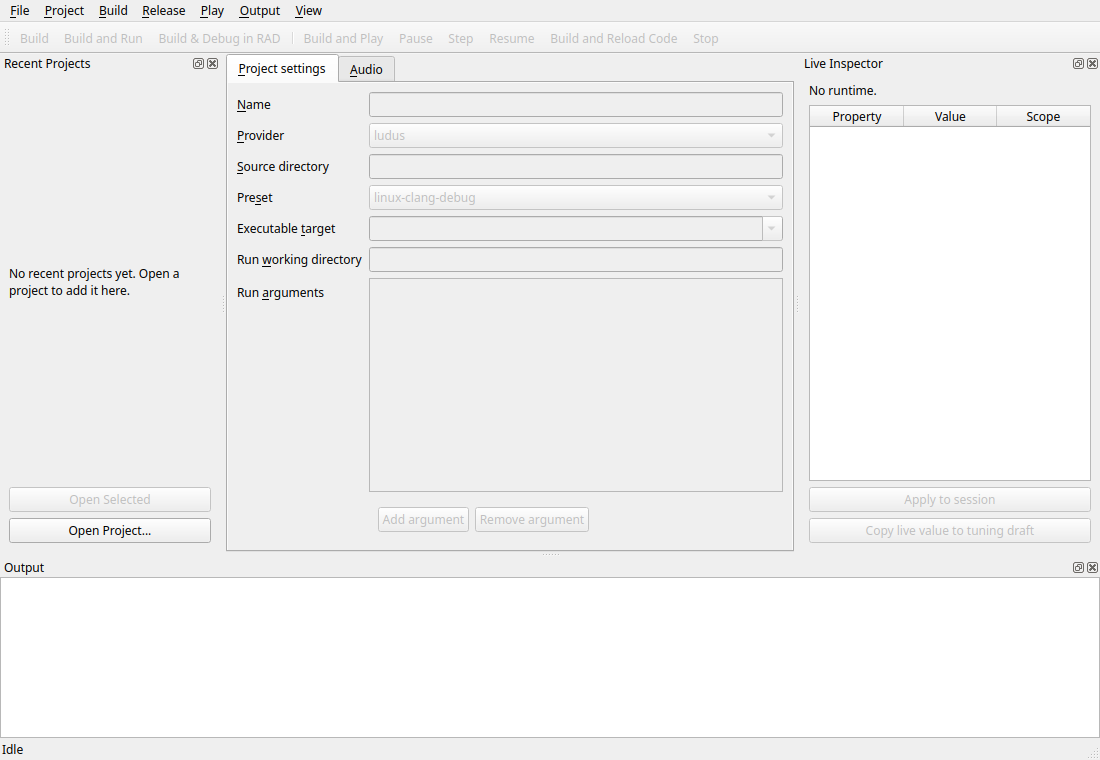
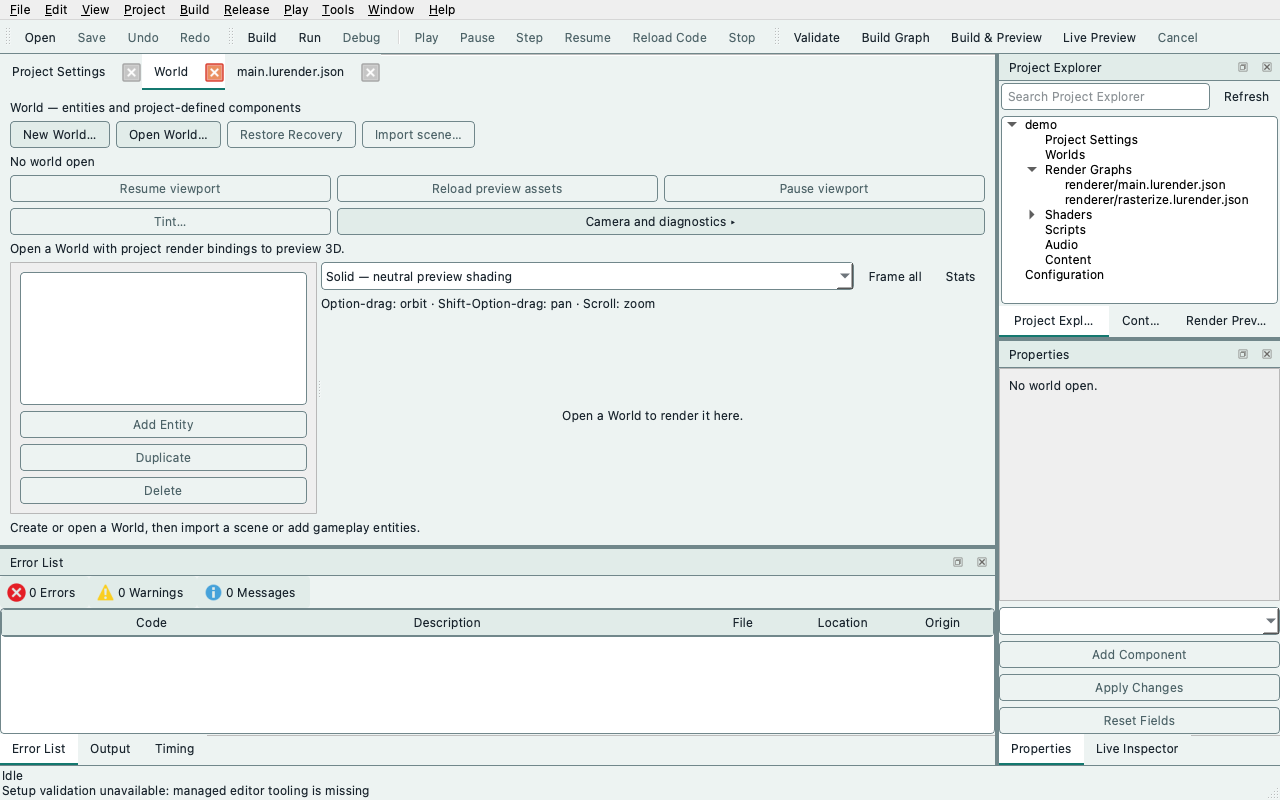
The first, historical S1 offscreen capture predates the Welcome/recent-project changes and the document well. It records presentation at that stage; the second capture shows the current default layout at 1280×800. Use the work-area tables above for current layout roles. It does not establish native interaction or game-frame acceptance.
The current workspace layout puts documents in a central tabbed well with tool windows around it. Recents appear on the Start Page and in the File menu. The Game toolbar exposes the existing build/debug and Play controls; toolbar and menu actions share controller capability gating.
Use the Window menu or View to recover a hidden tool window, and View →
Toolbars for a toolbar. Window → Reset Window Layout restores the default
arrangement without changing project drafts or Play.
A normally accepted close writes local layout preferences to
$XDG_CONFIG_HOME/Ludus/Editor/workspace.json (Qt platform config location when
that environment variable is absent). Preferences are independent of projects
and recent-project history. Missing, invalid, oversized, or incompatible app/Qt
versions fall back to defaults. Only this editor's locally generated layout is
supported; do not distribute layout blobs with projects.
See architecture, interaction design, and post-design reference review.
Truncation
Text that does not fit is cut where it costs the least, and never silently:
- Paths (Project Explorer, Graph Sources, the Error List's File column, the render-graph document header and the source file selector) keep the file name whole. The folder is dimmed and elided from the middle first; only a file name wider than the field is elided itself, also from the middle. Text with no folder part elides from the middle.
- Combo boxes draw their current text with the same elision, never a cut mid-word, and ask for a width that holds their longest item.
- Tool window tab bars show each window's icon and title while they fit. When the dock is too narrow for every title, the tab bar switches to icons only; every tab keeps its full title as its tooltip.
- Anything that is cut shows its full text as a tooltip.
PathItemDelegate, PathLabel and ElidePathText in apps/editor/src/path_text.cpp
implement the path rules.
Editor icons
The outline icons for the toolbars, Project Explorer, Error List and tool window tabs are taken
unchanged from Lucide 1.62.0, commit
2ca268e74888d3506b3319fb8f94aaaaf70ceca9 of
lucide-icons/lucide.
Thanks to the Lucide authors for these drawings. Lucide is ISC licensed; some
of its drawings derive from Feather (MIT). The licence file at
apps/editor/icons/LICENSE carries both notices and must ship with the icons.
The SVG files live in apps/editor/icons and are Qt resources under :/icons.
apps/editor/src/editor_icons.cpp parses each one once, on first use, into a
QPainterPath on a 24 unit grid and draws it with a 1.5 unit round stroke in the
palette's button text colour. Disabled icons use disabled button text; Play and
Stop are filled to identify live-state actions. No SVG is parsed while painting,
and no Qt SVG module is needed. One bounded pixmap cache keys entries by icon,
size, device pixel ratio, mode and colour. The parser supports path, circle
and rect elements and the M, L, H, V, C, S, Q, T, A and Z path commands; a new
icon that needs anything else fails the icon tests. The one drawing that used
line elements (timer) has them written as equivalent two-point paths.
To add an icon:
- Copy its SVG from the pinned Lucide commit into
apps/editor/icons. - Add it to
EditorIconinapps/editor/src/internal/editor_icons.hand toICON_DESCRIPTORSinapps/editor/src/editor_icons.cpp, and keepEDITOR_ICON_COUNTin step. - Run the editor tests tagged
[icons]. The resource helper inapps/editor/CMakeLists.txtdiscovers SVG files in that directory automatically.
Which commands get a label
One set serves every toolbar, so a command looks the same wherever it appears.
Commands that start something or choose a destination (Open, Save, Build, Run,
Debug, Play, Stop, Reload Code) draw their icon beside the label. Peers in a
run of symmetric commands (Undo, Redo, Pause, Step, Resume) are icon-only and
carry a tooltip that names the command and its shortcut. A toolbar command
never appears as bare text, and [style][spacing] tests fail when a layout
margin or spacing is typed as a pixel number instead of a design::SPACING_*
token.
Engine concepts that Lucide has no drawing for (entity, probe, cook) will be drawn in house on the same grid and stroke. List their attribution here when added.
macOS validation
The macOS CI job builds the Editor with pinned Clang 23 and warnings as errors, runs offscreen widget/document tests and real process-adapter regressions, and runs those widgets under ASan/UBSan. A separate explicit Cocoa test exercises a real native window, creation against an installed SDK, build/run, Stop of a long-lived runtime, read-only diagnosis of missing local presets, and repeated repair. Run it only after preparing the SDK and Editor tests:
QT_QPA_PLATFORM=cocoa LUDUS_SETUP_TEST_SDK="$PWD/out/install/macos-clang-development" \
  out/build/macos-clang-development/apps/editor/ludus_editor_tests '[.macos-journey]'
The adapter binds Darwin waitid(WNOWAIT) through libc because Python does not
expose it on macOS. Bounded libproc group snapshots replace /proc. The leader
stays unreaped until descendant cleanup is confirmed, preserving the existing
ownership/Stop contract; missing or truncated process information yields
CleanupUnknown, never successful cleanup. Settings in tests are isolated
using the same absolute XDG_CONFIG_HOME override as local development.
Script assets and behavior debugging
The Scripts tab reads project-owned text and bounded structured-sequence assets
from ludus.scripts.json. Save, Cook and Build/Reload are explicit operations.
Inspect, source/node breakpoints and step controls use the existing out-of-process
GameHost channel; partial script ticks block native reload. See the
S5 workflow and acceptance for the SDK-only sample,
draft conflict handling, source-map identity checks and supported limits.
Opening complete projects and samples
File → Open Project selects the folder containing ludus.project.json.
Native editing uses that folder directly; browser editing copies its sources and
assets into session storage. File → Open Sample creates a separate writable
copy of a bundled example. Copies live under the editor's application data
folder on desktop and in session storage in the browser. The existing sample
never changes when you edit a copy. The browser guide
describes export and session limits.
In the browser, Play → Play Web Sample runs the precompiled Cornell Box, Live Edit Game or Scripted Game player without engine selection or setup. The player uses the shipped build; source/data changes in the workspace require a desktop rebuild. The console-only SDK example has no web game player.
Project → Repair Project Setup → Automatic reuses the selected engine. For an unresolved version-2 CMake project without a local selection, it discovers or prepares the editor's engine automatically, then validates and builds the project and runs tests. This happens only after explicit repair; opening a project remains read-only. A missing, corrupt or incompatible explicit selection still reports its error so you can choose a replacement. Advanced engine selection remains available for deliberate overrides.